Guided tour
Review and compare proposals
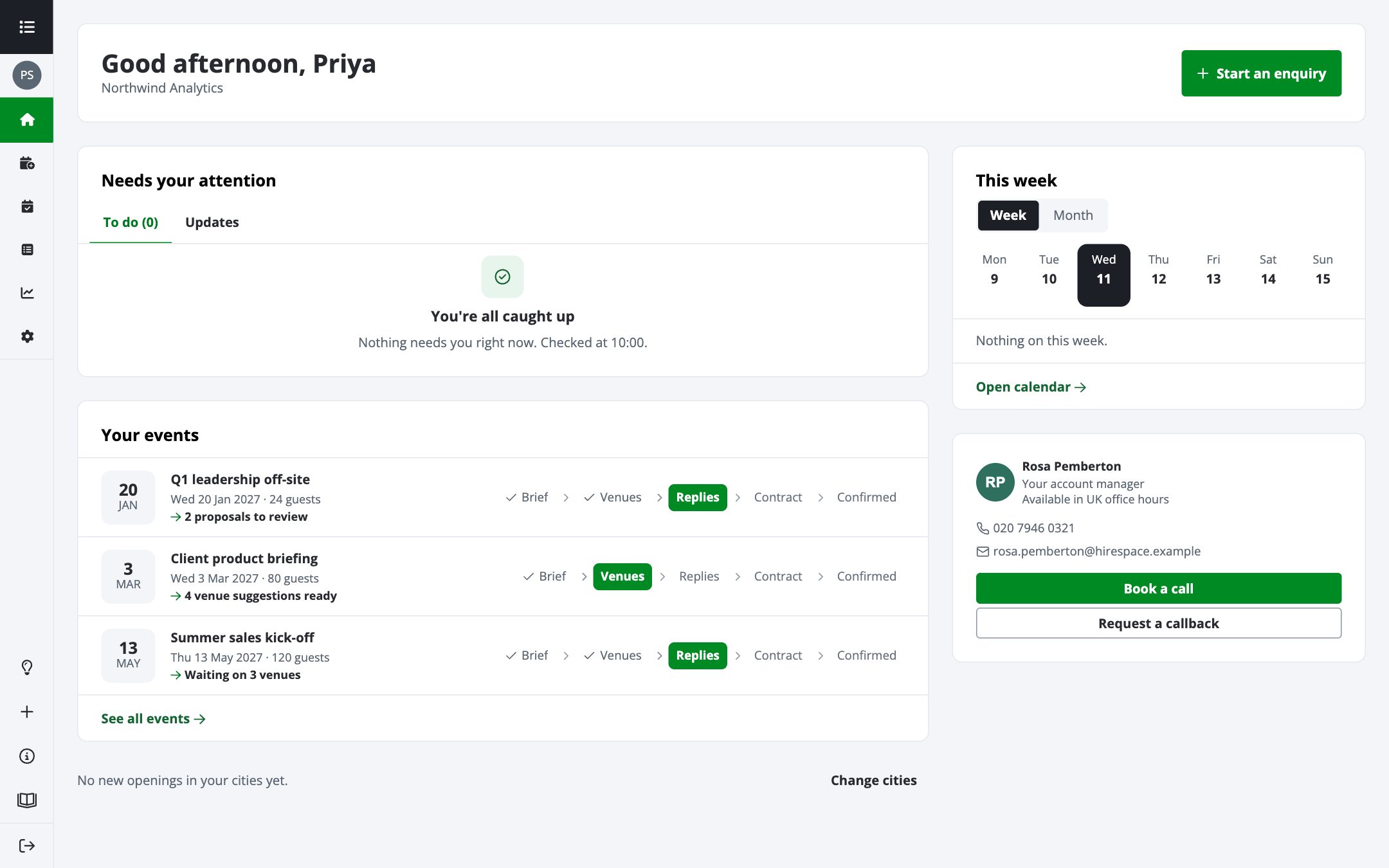
Put the venues' quotes side by side and choose where to book. If Hire Space runs your enquiry, your account manager builds the proposal for you. If you run it yourself, you add each quote from the venue's message. Click the highlighted parts of the screen to move on, or use the arrow keys.
Earlier in this series: Start an enquiry, then Find and add venues, then Send your brief, then Message venues
Your event’s Proposal stage puts the venues’ quotes side by side, so you can compare them and choose where to book. If Hire Space runs your enquiry, your account manager builds the proposal for you. If you run it yourself, you add each venue’s quote from its message.
Who can use it
- Hire Space 360 clients and preferred clients: you have Proposal whether you run the enquiry yourself or Hire Space runs it.
- When Hire Space runs your enquiry: your account manager gathers the quotes and builds the proposal for you. See When Hire Space runs your enquiry.
- Signed in with no company agreement: when you run an enquiry yourself there’s no Proposal stage. Compare venues’ replies in Messages instead.
Why compare quotes on your proposal
- Totals you can compare. Each card shows the venue’s total quote before VAT. Optional extras are listed in italics and left out of the total, so every total counts the same kind of costs.
- A price before every venue has quoted. Until a venue sends its quote, its card shows an instant quote based on that venue’s recent quotes.
- Decide with your colleagues. Share the proposal by link and choose View only or Allow actions for each person. Where you have Download as PowerPoint, present it in your company’s branding.
- Book from the same page. Request a contract from the venue’s card. When Hire Space runs your enquiry, you can also ask for a site visit or to hold dates there.
When Hire Space runs your enquiry
You don’t need to collect or add any quotes. Your account manager contacts the venues, gathers their quotes and builds your proposal. When it’s ready, they present it to you to review.
- Sign in at home.hirespace.com and open your event from Your events on your Home page, or from My Events.
- Click Proposal along the top. The banner names your account manager.
- Venues your account manager recommends are labelled Recommended, with their reason on the card.
From each card you can see the full quote, ask for a Site visit or Request contract. Then compare and share the proposal as below. See Working with your account manager.
Before you start
If you run the enquiry yourself, send your brief to your venues and wait for their replies first.
Add a venue’s quote to your proposal
When you run the enquiry yourself, venues send their quotes in Messages. Add each one to your proposal so you can compare them.
- Sign in at home.hirespace.com and open your event from Your events on your Home page, or from My Events.
- On the Messages stage, open the venue’s conversation.
- Under the message with the quote, click Add to proposal. It shows the file we’ll read the prices from. To choose which files to read, click Review in dialog.
Adding the quote can take a few minutes. You can carry on with something else in the meantime.
Compare your quotes
- Click Proposal along the top of your event.
- Each venue has a card with the space’s photos, address, capacity and its total quote before VAT.
- To compare them in rows, click Table. Each row shows the venue’s quote, capacity and location. To see where they are, click Map.
Until a venue sends its quote, its card shows an estimate based on that venue’s recent quotes.
To mark a venue you like, click the star on its card: it’s labelled Recommended, as your account manager’s picks are. To rule a venue out, click the bin.
See what a quote includes
- On a venue’s card, click See full quote.
- Check each item: its unit price, quantity, VAT rate and total.
Optional extras are shown in italics and aren’t included in the total. To go back to all your venues, click your event’s name at the top.
Share your proposal
Share the proposal when colleagues need to see the options or help you decide.
- On the Proposal stage, click Share.
- Under Who can open it, choose Unverified email (people type their email and go straight in) or Verified email (we email them a one-time link first).
- Under Link expires, choose 7 days, 28 days or 90 days.
- Under People to send it to, add each person’s email address.
- Click Create link. We email each person their own link.
To present the options instead, click Download as PowerPoint. We make the slides in your company’s branding and email you when they’re ready. Before your first deck, tick the box to confirm your company will source venues for this event only through Hire Space.
Download as PowerPoint is for Hire Space 360 clients, preferred clients and any enquiry Hire Space runs. People you share the proposal with don’t see it.
Request a contract
When you’ve chosen your venue, click Request contract on its card or on its full quote. When Hire Space runs your enquiry, you can also ask the venue to Hold dates or arrange a Site visit from the card. See Arrange a site visit and hold dates.
When Jill suggested your venues
On some enquiries, Jill from our team suggests the venues and you take it from there. Their cards show Introduce me instead of Request contract. Click it and Jill emails the venue to introduce you, so you can talk to them directly. The button then reads Introduction requested.
What happens next
When the venue’s contract is ready, it waits for you on your event’s Contracts stage to sign online. Then you pay, by card or by invoice. See Sign contracts and pay online.
Good to know
- Anyone at your company who can open the event can share its proposal.
- For each person you share with, choose View only or Allow actions. Allow actions lets them message the venue on an enquiry you run yourself, or request a contract, hold dates or ask for a site visit on an enquiry Hire Space runs. Tick Can re-share if they may pass it on.
- In Table view, use Columns and Filters to choose what you see, Copy to copy the whole proposal, or Export to download it as a CSV file.
- If your account manager recorded a welcome video for your proposal, you also see a Welcome tab.
- If your event needs bedrooms, hotel options sit under their own Hotels heading below your venues. See Hotels in your proposal.
Troubleshooting
The proposal is empty.
If you run the enquiry yourself, open a venue’s reply in Messages and click Add to proposal. If Hire Space runs it, your account manager adds options as venues reply.
A quote I added hasn’t appeared.
Adding a quote can take a few minutes. Refresh the page after a moment.
There is no Proposal stage.
Proposal is for Hire Space 360 clients, preferred clients and enquiries Hire Space runs. If you think you should have it, use the contact options at the end of this page.
Still need help?
Contact your account manager, or email our team.