Guided tour
Sign contracts and pay online
Book the venue you've chosen: request a contract, sign it online and pay the invoice. Click the highlighted parts of the screen to move on, or use the arrow keys.
Earlier in this series: Start an enquiry, then Find and add venues, then Send your brief, then Message venues, then Review and compare proposals
Once you’ve chosen a venue, you book it in three steps: request a contract, sign it online and pay the invoice. Some bookings are confirmed at an online checkout instead.
Who can use it
- Hire Space 360 clients: request, sign and pay here on every booking.
- Preferred clients: request, sign and pay here when Hire Space runs your enquiry. When you run it yourself, you can too if your company has chosen to contract through Hire Space, in Settings > Contracting.
- When Hire Space runs your enquiry: your account manager prepares the contract with you. You still sign and pay here.
- Signed in with no company agreement: when you run an enquiry yourself there’s no Contracts or Payments stage. You agree the booking with the venue directly.
Why book through Hire Space
- No paperwork to chase. You ask for the contract from the venue’s card, and we prepare it for you to sign online.
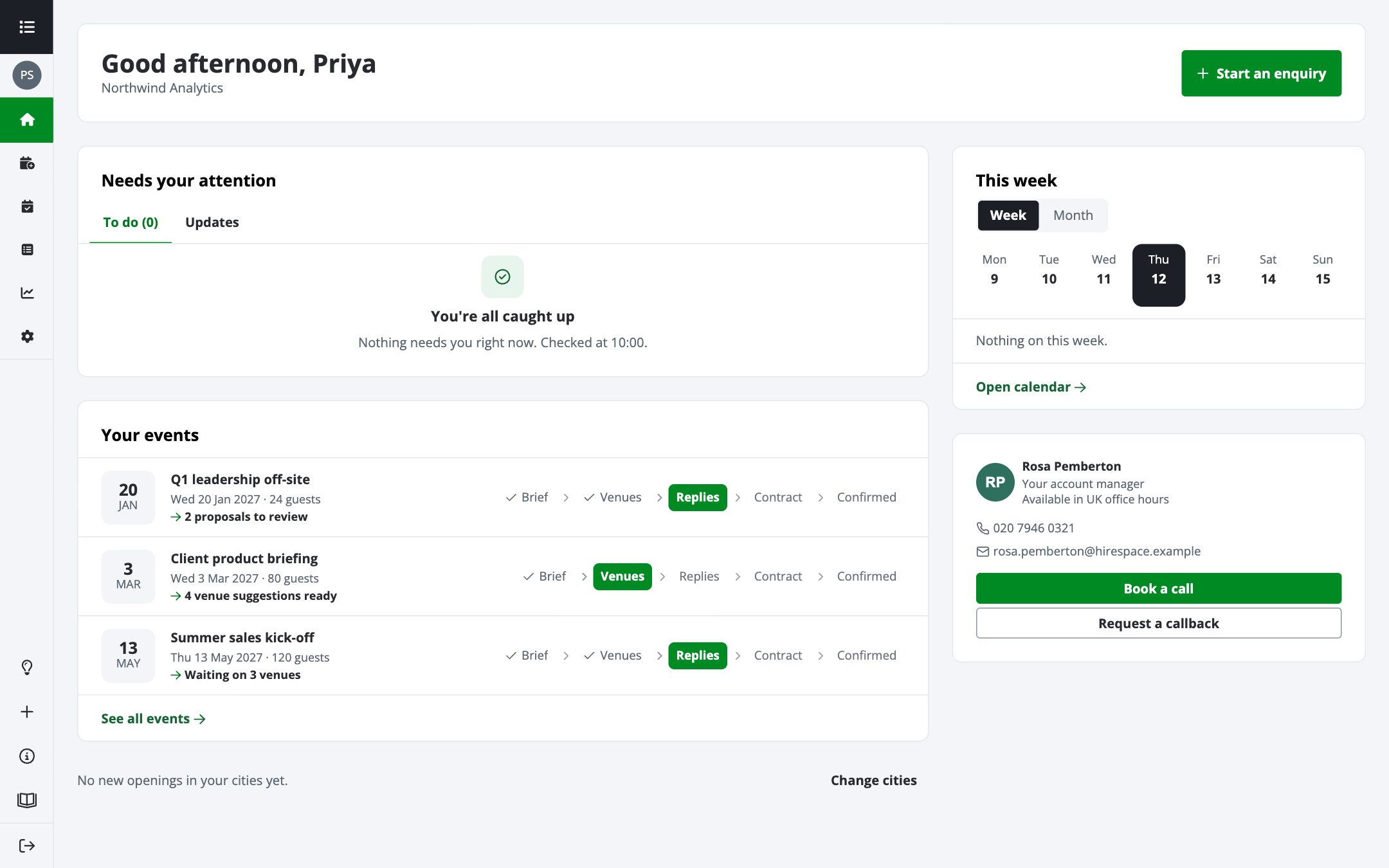
- Nothing waits unnoticed. A contract ready for you shows under To do on your Home page, as Contract ready to sign.
- Everything stays with your event. The contract stays under Contracts, and your invoices and payments under Payments.
- Pay the way your finance team prefers. Pay online by card or by bank transfer, add a purchase order number and tell us when you’ll pay.
Before you start
Choose your venue on your event’s Proposal stage. See Review and compare proposals.
Request a contract
We prepare a standard digital contract from the venue’s proposal, your comments and anything you’ve agreed with the venue.
- Sign in at home.hirespace.com and open your event from Your events on your Home page, or from My Events.
- On the Proposal stage, click Request contract on the venue’s card.
- Add anything the contract should include under Your comments.
- Click Request Contract. You see Your contract request has been received.
Need it urgently? Click Request Priority Contract instead. The button is marked Same day guarantee for requests made before 12pm.
Sign your contract
When the contract is ready, it appears on your event’s Contracts stage.
- Click Contracts along the top of your event.
- Under To sign, find the contract. Click the arrow on its right to see what it covers.
- Click Review and sign. The contract opens in a new tab, where you read it, comment on it and sign.
Once it’s signed, the contract moves to Signed.
Pay your invoice
Once the contract is signed, we create your invoice. It appears under Payments shortly after your contract is countersigned.
- Click Payments along the top of your event.
- Under Invoices, each invoice shows how much is due and by when.
- Click View and pay to open the invoice in a new tab and pay it online. Paying by card adds a 3% card fee. Bank transfer has no fee.
To add your purchase order number, click Add or edit PO number. To tell us when you’ll pay, click Set estimated payment date.
Confirm and pay at an online checkout
Some bookings are confirmed through an online checkout instead, and don’t show the Contracts and Payments stages. When yours is ready, a Your booking is ready to confirm banner appears at the top of your event, and we email you a secure checkout link.
- In the banner, click Proceed to checkout, or open the checkout link in your email.
- Check the Event details, Cost breakdown and Cancellation policy.
- Read the terms and tick the box to agree to them.
- Enter your card details and click Pay followed by the amount.
The Cost breakdown includes a Service fee, plus VAT, which covers payment processing and platform support.
When it’s done you see Payment received, and we email your confirmation and VAT invoice. Card payments at checkout are processed by Stripe.
What happens next
Your booking is confirmed. Everything about it stays in your event: the contract under Contracts and your invoices and payments under Payments. For deposits, VAT, PO numbers and who to ask about a payment, see Invoices, deposits and paying Hire Space. If your plans change, see Change, postpone or cancel a booking.
Good to know
- Refundable deposits, if a venue asks for one, are under Payments > Deposits.
- Once an invoice is paid, you can click Request refund on it if you need to.
- If you pay by bank transfer, quote the invoice number and your event reference so we can match the payment. For a statement of your account, email accounts@hirespace.com.
- Admins can set your company’s billing details in Settings > Billing, including Requires Purchase Order and when VAT is invoiced under Invoice VAT Settings.
Troubleshooting
“Please request a contract at your chosen venues to continue”.
Contracts opens once your contract has been prepared. Request one from your Proposal first. It appears under Contracts when it’s ready.
“An event contract must be signed before invoices are issued”.
Sign the contract under Contracts first. Invoices follow once it’s signed.
“Your last payment attempt failed.”
Click Try again. If it fails again, contact your account manager.
“Payment not completed”.
No payment was taken and your booking isn’t confirmed yet. Go back to the checkout to finish.
Still need help?
Contact your account manager, or email our team.