Guided tour
Find your way around Hire Space
A quick look around: your Home page, the sidebar, your events and where to find settings and help. Click the highlighted parts of the screen to move on, or use the arrow keys.
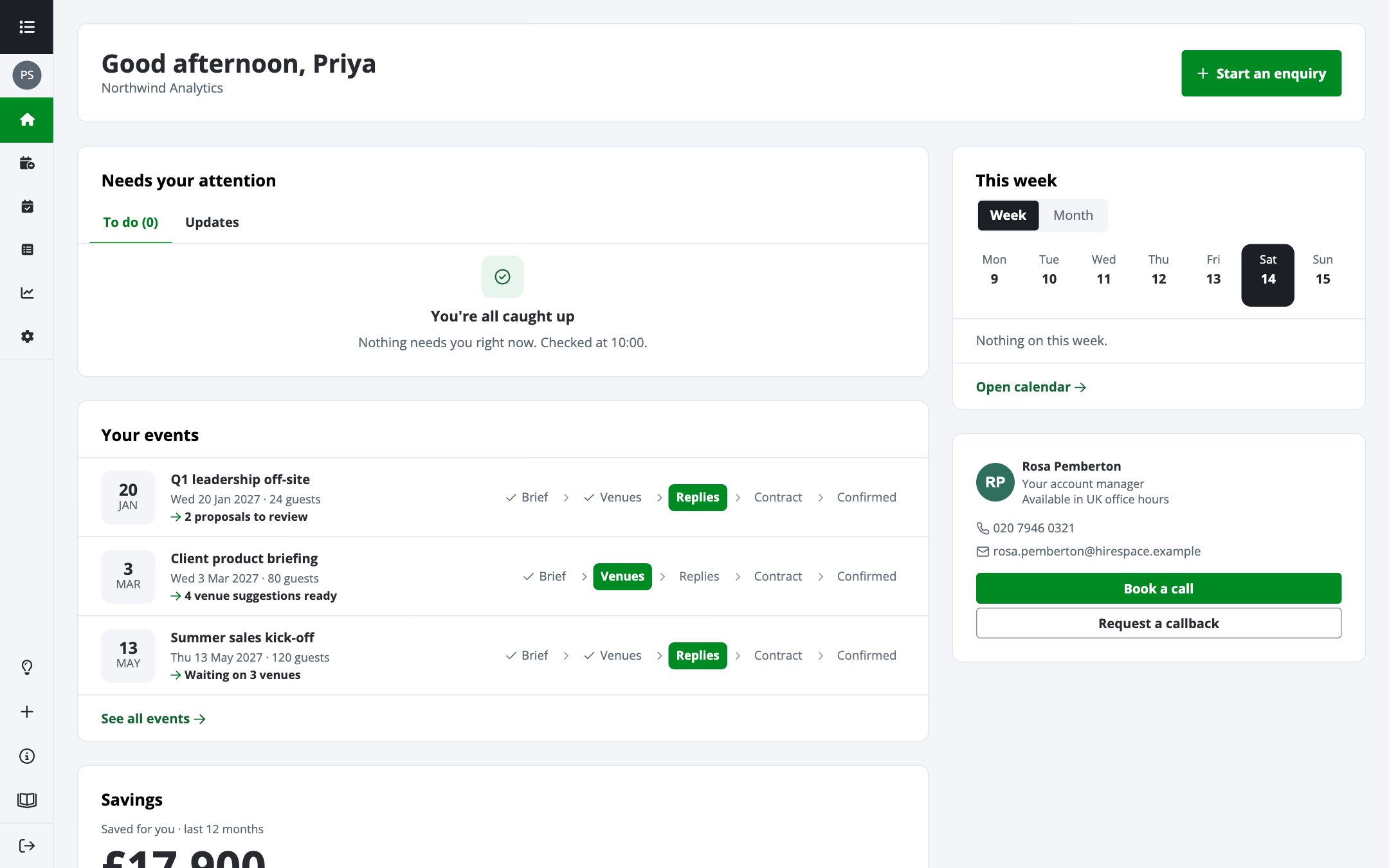
The Hire Space client platform opens on your Home page, with a sidebar on the left for moving between your events, shortlists, reports and settings. Each event then has its own workspace, with a stage for each step from brief to payment.
Who can use it
- No account yet: home.hirespace.com shows a start page where you can start an enquiry or sign in.
- Signed in with no company agreement: you get the same Home page and sidebar. Events you run yourself have Brief, Venues, Send brief and Messages.
- Preferred clients and Hire Space 360 clients: you also get Proposal, Contracts, Payments and Savings on your events, and the company settings.
Why everything is organised by event
- Every event you can see is in one list. My Events shows your enquiries and bookings as a list or a calendar, with your team’s once you’re in a team, so you can see what’s on when.
- Each event walks you through the steps. Its stages run from brief to payment in order, and a stage you can’t open yet tells you what to do first.
- Nothing goes quiet without you noticing. Each card shows the next step, and flags an open event with no activity for five days or more.
- Your company’s set-up lives in one place. Settings holds your people, billing, event policy and approvals together, so your admins manage them from one place.
Your Home page
Sign in at home.hirespace.com and you land on Home.
- Needs your attention lists anything waiting for you, such as proposals to review.
- Your events shows each event, the stage it has reached and what happens next. Click one to open it.
- This week shows what’s coming up, and your account manager’s details sit alongside, with Book a call and Request a callback.
For everything on Home, including approvals, savings and the calendar, see Your Home page.
The sidebar
The sidebar is on every page. To see each item’s name beside its icon, click the menu button at the top of the sidebar.
| Item | What it’s for |
|---|---|
| Home | Your Home page. |
| New Event | Start an enquiry for a new event. See Start an enquiry. |
| My Events | Every event enquiry and booking you can see. |
| Venue Shortlists | Saved lists of venues for your team. See Create a venue shortlist. |
| Reports | Spend and activity across your company’s events. Without access it opens locked. See Company reports. |
| Settings | Users, billing, event policy, approvals and contracting. |
Below them, for suggesting ideas and getting help, are My ideas and Suggest an idea, Live Support Chat, Knowledge Base and Sign out.
My Events
My Events lists every event you can see, as a List or a Calendar.
- Click My Events in the sidebar.
- Narrow the list with Status, Team and Event date, and order it with Sort.
- Click an event to open it.
Create Event Enquiry at the top does the same as New Event.
Where each event is up to
Each card in the list shows the event’s photo and status, its date (marked Flexible if the date can move), the venue once one is confirmed, the budget, the number of guests and the team it belongs to. A chip says whether you’re running it yourself (Platform) or your account manager is (Relationship Manager).
Below that, the steps show where the event has reached: Brief, Venues, Replies, Contract and Confirmed. Under them, the next step in plain words, such as Waiting on 3 venues, 2 proposals to review or Contract ready to sign. If an open event has had no activity for five days or more, the card says No activity for that many days, so nothing goes quiet without you noticing.
Click the … on a card to jump straight to its Brief, Proposal, Contract or Payments (and Messages on enquiries you run yourself). Rebook starts a new enquiry with the same event type, area and guests.
See your events on a calendar
Choose Calendar at the top of My Events to see your events by Month or Year, each team in its own colour.
Confirmed bookings and the enquiries you’re still planning show side by side, and the key under the calendar says which is which. In the month view a confirmed event has a solid outline, a pending one a dashed outline with a clock, and one with a flexible date a dotted outline marked ≈. Past events are faded. In the year view each day with an event has a dot in the team’s colour: solid when confirmed, a ring when it’s pending, flexible or still choosing a date.
- The top of the calendar shows how many events are in the month or year on screen and their total budget. Use the arrows or Today to move around.
- Open Legend to see the teams with events in that period and how many each has. Click a team to see only its events.
- Search by event name, or narrow it with Status and Team.
- Hover over or click an event to preview it: its status, date, budget, guests, team and venue. Choose Open event to go to it.
- In the year view, click a month or a day to open that month.
Unscheduled holds Events without a fixed date, so they aren’t lost. An event still choosing between a few dates appears on each of its possible days, marked ? with a striped edge, and its preview numbers them (such as candidate date 2 of 3). It’s listed under Unscheduled too. An enquiry you start without a date lands there until it has one.
Plan from a day
To plan something new on a particular day, hover over the day in the month view and click the + in its corner. The enquiry form opens with that date filled in. You can’t start one on a day that’s passed.
On a busy day, click the more link under its events (such as +3 more) to see everything on it, with each event’s time, team, budget and status and the day’s total. Create enquiry for this day is there too.
Change an event’s team
Each event shows its team beside its name. Company admins can change it: click the pencil next to the team, choose the team and select Move to that team. Everyone who could see the event before still can.
Not in a team yet? You’ll only see events you created. My Events says so, and you can ask to join a team with Find your team. An admin decides. See Users, roles and permissions.
Inside an event
Each event has stages along the top, in the order you work through them:
| Stage | What happens there |
|---|---|
| Brief | Describe the event. See Start an enquiry. |
| Venues | Choose the venues you want quotes from. See Find and add venues. |
| Send brief | Send your brief to those venues. See Send your brief. |
| Messages | Venue replies and your conversations. See Message venues. |
| Proposal | Compare quotes side by side. See Review and compare proposals. |
| Contracts | Contracts to sign and signed. See Sign contracts and pay online. |
| Payments | Invoices and deposits. See Sign contracts and pay online. |
| Savings | What we saved you on this event once a venue is booked. See Company reports. |
You don’t always see every stage. Send brief and Messages only appear when you run the enquiry yourself. A Hotels stage appears when your brief asks for bedrooms. A stage you can’t open yet is greyed out: hover over it to see what you need to do first.
Settings
Settings has a tab for each area. Everyone at your company can open it, but most changes need an admin.
- User management: people and teams. See Users, roles and permissions.
- Event codes: only shown if your company uses event codes.
- Billing: billing details, purchase orders and VAT.
- Event policy and Approvals: see Approvals and event policy.
- Contracting: whether Hire Space handles contracts on enquiries you run yourself. Hire Space 360 clients always contract through Hire Space.
What you can do
Which of these you see depends on your company’s arrangement with Hire Space, as set out under Who can use it.
| To | Use |
|---|---|
| Start an event | New Event in the sidebar, or Create an event enquiry on the start page before you have an account |
| Find venues | The Venues stage: suggested venues, your own search, Deep venue research or Add venue by name, each with an instant quote |
| Ask venues | Send brief, then follow their replies in Messages |
| Choose | Proposal: compare the quotes side by side and share them |
| Book | Contracts and Payments: sign online and pay invoices |
| Plan ahead | Venue Shortlists, shared with your team or by link |
| Run your company’s events | Settings for users, teams, event policy and approvals, and Reports for spend and savings |
| Hand an event over | The account manager panel at the top of each event |
Getting help
Click Live Support Chat in the sidebar to talk to our team, or Knowledge Base for guides like this one. Where you see Call us in the sidebar, it gives you a number to ring. For who to ask about what, see How to get help.
What happens next
Start your first enquiry. See Start an enquiry.
Still need help?
Contact your account manager, or email our team.