Guided tour
Message venues about your event
Read the venues' replies to your brief and answer them, all in one place. Each venue has its own conversation. Click the highlighted parts of the screen to move on, or use the arrow keys.
Earlier in this series: Start an enquiry, then Find and add venues, then Send your brief
When you run an enquiry yourself, venues reply to your brief on the event’s Messages stage. Each venue has its own conversation, so everything about the event stays in one place.
Who can use it
- When you run the enquiry yourself: Hire Space 360 clients, preferred clients and clients with no company agreement all talk to venues here, once the brief has gone.
- When Hire Space runs your enquiry: there’s no Messages stage. Your account manager talks to venues for you.
Why message venues on Hire Space
- Everything about a venue in one conversation. Replies to your brief, your messages, files and calls stay with your event, and replies a venue sends by email appear here too.
- We chase for you. Hire Space follows up if a venue doesn’t reply, and Chase For Me asks us to chase sooner.
- Calls are recorded. Call a venue through a Hire Space line and the call is saved in the conversation, with a summary and a transcript.
- Quotes go straight to your proposal. Where your event has a proposal, add a venue’s quote from its message and compare it with the others.
Before you start
- Send your brief to your venues first.
Read and reply to a venue
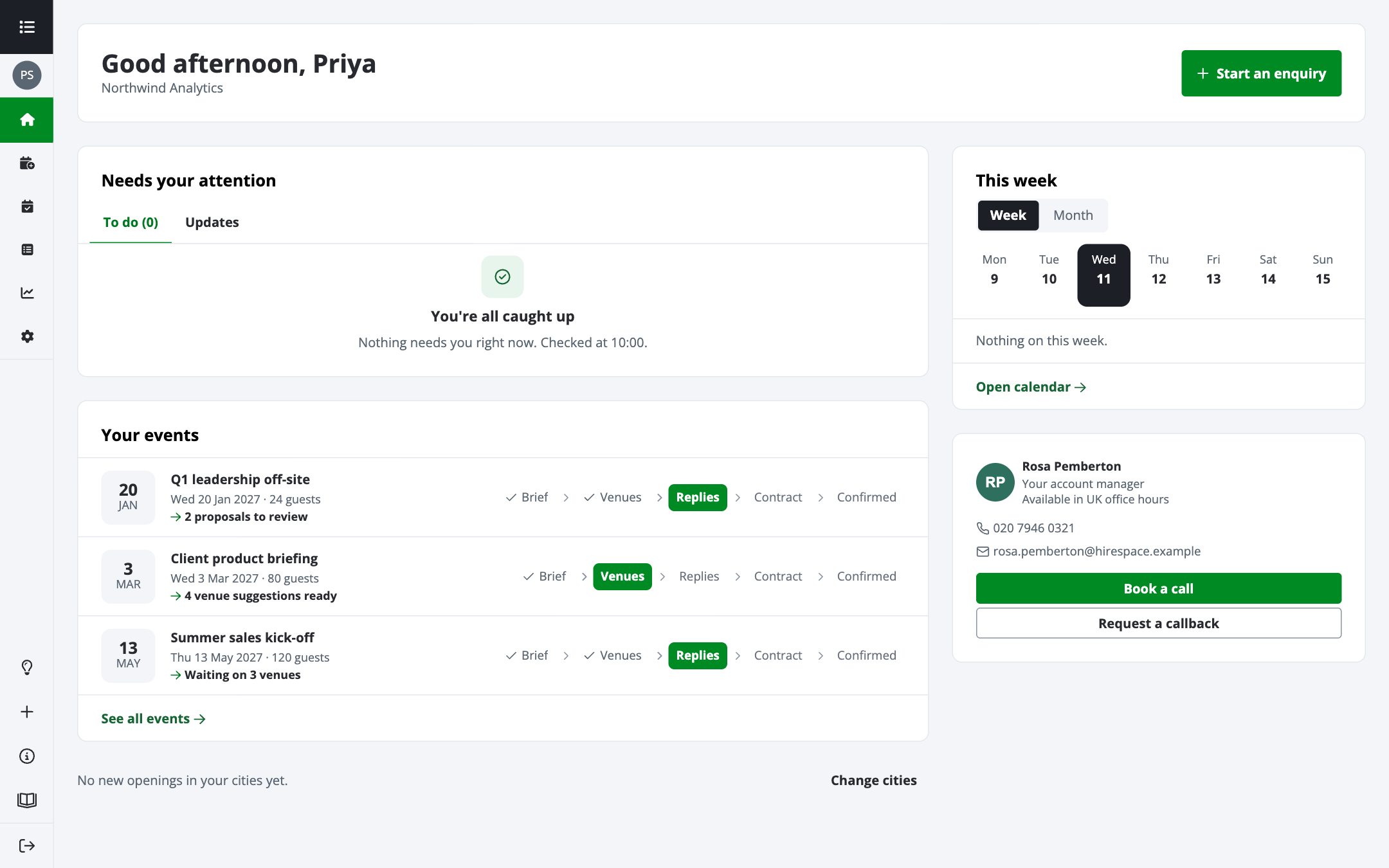
- Sign in at home.hirespace.com and open your event from Your events on your Home page, or from My Events. Once your brief has gone, it opens at Messages. If not, click Messages along the top.
- Check the summary at the top of the list: when your brief went out, how many venues have replied and how many you’re waiting on.
- Click a venue’s conversation to open it. At the top, a Brief sent card shows the brief that venue received, when it went and where it stands: replied, can’t host this time, or the response time to expect. Hire Space follows up if a venue doesn’t reply.
- Type your reply in Type your message. To attach a file, click the plus button.
- Click the send button.
Ask us to chase a venue
Chase For Me shows under your latest message 2 hours after you sent it, when that message needs a reply.
- Click Chase For Me.
We chase the venue for you: our team calls the venue if your company is on Hire Space 360 or is a preferred client, and we email the venue otherwise.
Call a venue
When it’s quicker to talk, call the venue through a Hire Space line. The call is recorded and saved with your event.
- In the venue’s conversation, click See phone number.
- Dial the number shown and enter the PIN when asked.
The PIN works for 5 minutes. If it runs out, click Request a new pin. See phone number only shows when the venue has someone we can put you through to.
After the call, it appears in the venue’s conversation: how long it lasted, a summary of what was agreed and the recording. Click Show transcript to read the whole call.
Request a contract
When you’re ready to book a venue, click Request Contract at the top of its conversation. When a venue’s message is about booking, a Want to book this venue? prompt also appears in the conversation. These show only when Hire Space runs the contracting for you: always on Hire Space 360 and on enquiries Hire Space runs for preferred clients, and on a preferred client’s own enquiries when the company has chosen to contract through Hire Space in Settings > Contracting. See Sign contracts and pay online.
Archive a venue
Archive a venue you no longer want to hear from, to keep your list tidy. You can restore it later.
- In the venue’s conversation, click Archive venue.
- Confirm.
To see archived conversations, click See Archived. To bring one back, open it and click Restore venue.
What happens next
When a venue sends its quote, click Add to proposal under the message, then compare the quotes side by side on the Proposal stage. See Review and compare proposals.
Good to know
- Keep all communication on Hire Space until the booking is confirmed. If something goes wrong, we can see the whole conversation and help.
- More venues means a better chance one fits your brief. Click Add more venues under the list to add them.
Troubleshooting
The Messages stage is greyed out.
Hover over it to see why. You need a written description in your brief and at least one venue.
“We could not open your messages”.
Refresh the page after a moment. If it keeps happening, contact your account manager.
Still need help?
Contact your account manager, or email our team.