Guided tour
Your Home page
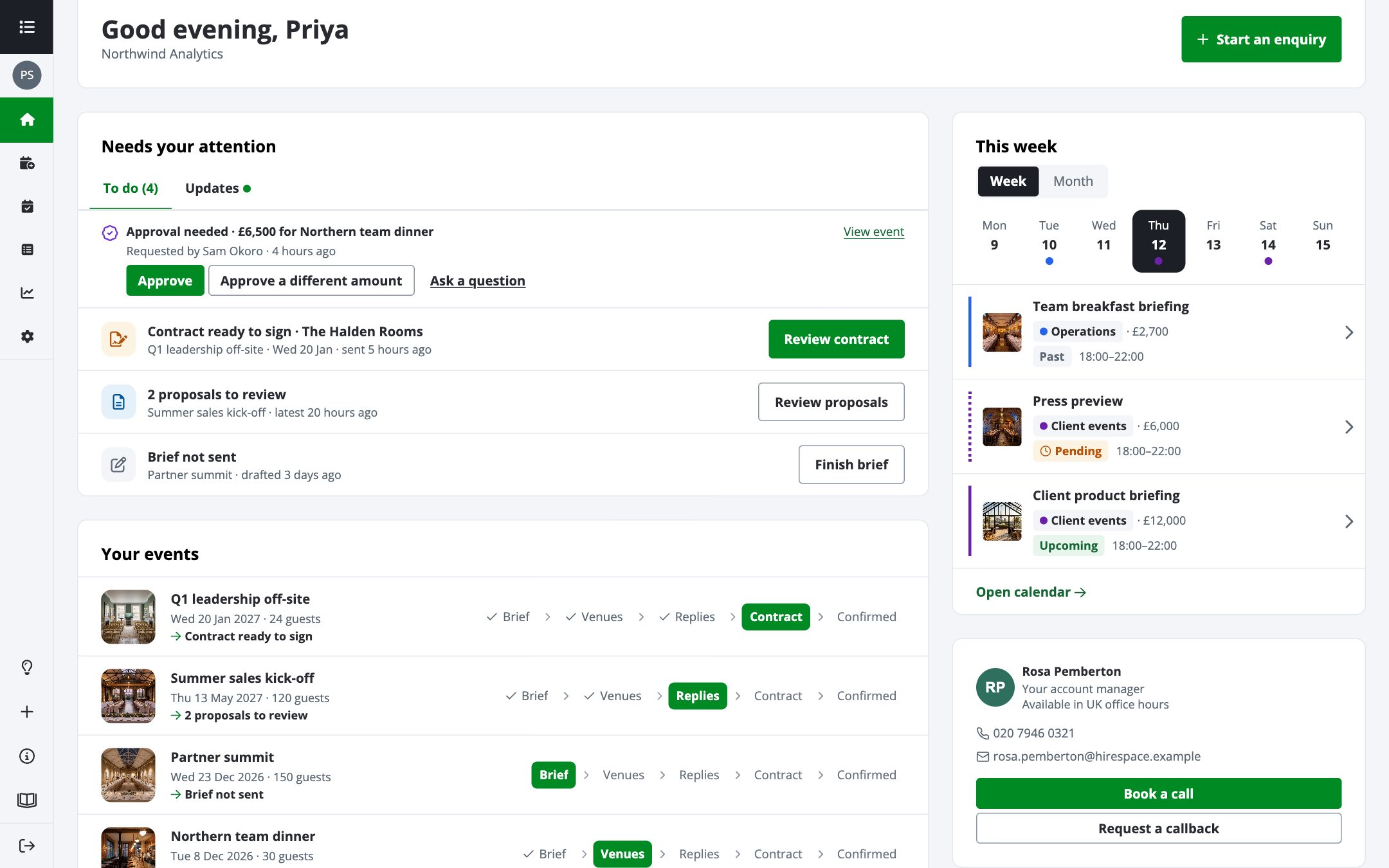
The Hire Space client platform opens on Home, which shows what needs you across all your events. Click the highlighted parts of the screen to move on, or use the arrow keys.
Earlier in this series: Find your way around Hire Space
Home is the page the Hire Space client platform opens on. It shows what needs you across all your events, what’s happened since you last looked and your dates this week, so nothing waits on you unnoticed.
Who can use it
- Hire Space 360 clients: everything on this page, including budget approvals, Savings and your team’s pinned reports.
- Preferred clients: Home with your events, updates, this week, Savings, Events for you, New openings and your account manager.
- Signed in with no company agreement: the client platform opens on your events and enquiries. See Find your way around Hire Space.
- Managed enquiries: events Hire Space runs for you show on Home like any other, with their next step.
Why start your day on Home
- Nothing waits on you unnoticed. To do gathers budgets to approve, contracts to sign, new proposals and briefs you haven’t sent, from every event. You can answer a budget approval without leaving Home.
- You see each event’s next step. Your events shows where each event is up to and what happens next, and flags an event that has gone quiet.
- Your week is in one view. This week shows your events from Monday to Sunday, with the full calendar a click away.
- Your account manager is one click away. Book a call or ask for a callback from their card.
Before you start
Sign in at home.hirespace.com. See Log in. You can get back to Home at any time from Home at the top of the menu.
See what needs you
Needs your attention has two tabs.
To do lists what’s waiting on you, in this order:
- Approval needed: a budget someone has asked you to approve, with the amount and the event. Choose Approve, Approve a different amount or Ask a question without leaving Home. Approvals you’ve asked for yourself show as Waiting for approval until they’re answered.
- Contract ready to sign: choose Review contract to open it.
- New proposals: choose Review proposals to see them.
- Brief not sent: a brief you started. Choose Finish brief to pick up where you left off.
If there are more than five items, choose View all to see the rest. When nothing needs you, the card title reads You’re all caught up, with the line “Nothing needs you right now.” and the time it last checked.
Updates shows what’s happened since you last looked: venue replies and new proposals. A dot on the tab means there’s something new. Choose an update to go straight to it.
Follow your events
Your events shows the events that most need a next step, up to four at a time, each with its date, guests, a photo of the venue and what to do next. The steps show where it’s up to: Brief, Venues, Replies, Contract and Confirmed. Select a step to jump to that part of the event. If an event has gone quiet, it shows how long there’s been no activity.
Booked and closed events don’t show here, but they’re all in My Events. If you can see your colleagues’ events, switch between My Events and Team. Choose See all events for the full list.
Check your dates
This week shows your events from Monday to Sunday. Switch to Month for the whole month. Select a day to open the calendar on that day, or choose Open calendar.
The calendar
My Events has a List and a Calendar view. The calendar shows a Month or a Year, with each team in its own colour.
- Open the Legend and click a team to see only its events.
- Unscheduled holds events without a fixed date, so they aren’t lost.
- Click an event to preview it, or click the + on a day to start an enquiry for that date.
For everything the calendar does, see See your events on a calendar.
Your savings
The Savings card shows what was saved for you over the last 12 months across your booked events, and what any extras venues included were worth. Choose See all savings for the full report. See Company reports.
More on Home
- Events for you: Hire Space events you can go to and venue offers for your company. See Hire Space events and venue offers.
- New openings: venues that have just opened or been refurbished in your cities. See New venue openings.
- Start an enquiry at the top opens the form for a new event. See Start an enquiry.
- Team reports (Hire Space 360 clients): reports your team has pinned from Ask, run on today’s figures with your own access. A team can pin up to six. To pin or rearrange them, choose Manage in Ask. See Company reports.
Talk to your account manager
Your account manager’s card shows their phone number and email, with two buttons:
- Book a call opens their calendar so you can pick a time.
- Request a callback asks them to call you. Choose what it’s about and the best time, check your number (it’s filled in from your profile) and choose Request callback.
If your company doesn’t have an account manager, the card shows the Hire Space team instead, and one of our event experts calls you back.
What happens next
Work through To do, then start your next event from Start an enquiry. See Start an enquiry.
Good to know
- Your first visit: with no events yet, Home asks What are you planning? with the Date and Guests. Choose Start an enquiry to open the enquiry form with those details filled in. Nothing goes to venues until you send the brief.
- Getting started lists tasks for your first days, such as Pick your cities, Create your first event and Meet your account manager. Admins also get Invite colleagues. Each task ticks itself off when it’s done, or choose Dismiss to hide the list.
- Not in a team yet? You’ll only see events you created. To join a team, go to My Events, choose Find your team and send a request. Your company’s admins approve or decline it.
- Approvals come from your company’s event policy. See Approvals and event policy.
Troubleshooting
- I can’t see Savings: click Reports in the sidebar, then Savings.
- Some items couldn’t be checked: Home says so at the top of the card. Choose Try again.
- My colleague’s event isn’t on Home: you only see your team’s events. Ask an admin to add you to the team.
Still need help?
Contact your account manager, or email our team.