Guided tour
Set your pricing
Add your prices to a space so clients know roughly what it costs before they enquire. This short tour shows you how: click the highlighted parts of the screen to move on, or use the arrow keys.
Read the video transcript
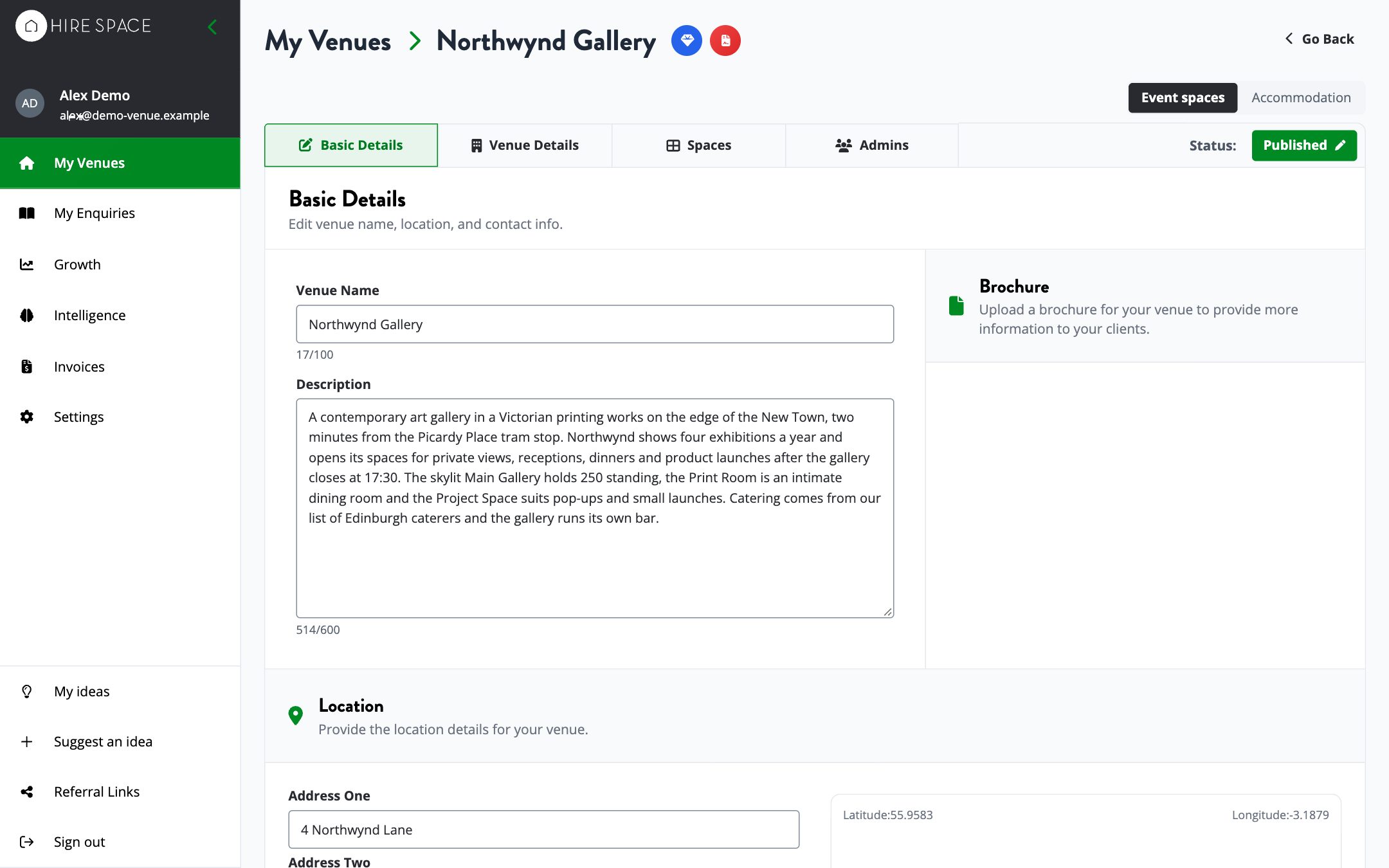
Prices tell clients roughly what a space costs before they enquire. On each space you add pricing structures, such as a venue fee or a minimum spend, and choose which Specialised Profiles each one applies to. Any admin of your venue can set them. Open your venue from My Venues. Next, click Spaces. Choose the space, here The Main Gallery. Next, click Pricing. Under Add Pricing Structure, click the structure you charge by. Here, Venue Fee. In the first row, choose the Time, here Evening, and set the From and To times. Choose the Price Type, here Price From, and enter the Price. Prices include VAT. Then select the days this price applies to. At the foot of the structure, click each Specialised Profile this price applies to. Here, Arts. If your price changes on other days, click Add a row and fill it in the same way, here a higher rate on Fridays and Saturdays. Then click Save Updated Prices. Further down, under Additional Details, set your Price Strictness and Hours Strictness. If you charge extras, tick Has Additional Charges. Then click Update Pricing. Here's what clients see. On the space's page on hirespace.com, your prices show under Guide prices, for each profile, so clients know roughly what to expect before they enquire. Add a structure for each way you sell the space. The full steps are in the help article.
Prices tell clients roughly what a space costs before they enquire. On each space you add one or more pricing structures, such as a venue fee or a minimum spend, and choose which Specialised Profiles each one applies to. Clients see them as guide prices on the space’s page on hirespace.com. Any admin of your venue can set them, whatever your plan.
Before you start
- The space needs at least one Specialised Profile. See Add a new space.
- Have your rates to hand by day of the week and time of day, including VAT.
Add a pricing structure
Add a structure for each way you charge for the space, such as a venue fee or a minimum spend. Each structure starts with one row of times, price and days.
- In the sidebar, click My Venues, then choose your venue.
- Open the Spaces tab, click the space and open the Pricing tab.
- Under Add Pricing Structure, click the structure you charge by: Venue Fee, Minimum Spend, Venue Fee & Minimum Spend, Delegate Package or Party Package.
- In the first row, choose the Time: Hour, Day, Week, Month, Morning, Afternoon or Evening. Then set the From and To times. Every row needs both, including Morning, Afternoon and Evening.
- Choose the Price Type: Fixed Price, Price From or Price Range.
- Enter the Price. For a range, enter both amounts. Prices include VAT.
- Under Days of the week, select the days this price applies to.
- At the foot of the structure, click each Specialised Profile this price applies to, such as Business or Dining.
- Click Save Updated Prices.
Add different prices for other days or times
Add a row when your price changes by day of the week or time of day, for example a lower weekday rate.
- In the pricing structure, click Add a row.
- Fill in the Time, Price Type, Price and Days of the week for the new row.
- Click Save Updated Prices.
Add more pricing details
Tell clients how firm your prices and hours are, and whether you charge extras.
- Scroll to Additional Details on the same tab.
- Set Price Strictness to Rough Guide, Negotiable or Fixed Price.
- Set Hours Strictness the same way for your hire times.
- If you charge extras, such as set-up fees or overtime, tick Has Additional Charges and describe them.
- Click Update Pricing.
Good to know
- Add a structure for each way you sell the space. A space can have both a Venue Fee for daytime hire and a Party Package for evenings, for example.
- For a Delegate Package or Party Package, also fill in Package Details: the Package Name and what is included under Features.
- To remove a row, click Remove time slot. To remove a whole structure, click the bin icon in its header.
- To promote a time-limited deal, use the Special offer highlight, which can have an expiry date. Highlights are part of Growth Core and Growth Prime. See Venue highlights. If your venue isn’t on either, email venues@hirespace.com about the deal.
- The Pricing tab also has Private Pricing Notes and Qualification Criteria for this space. See Private Pricing Notes and Qualification Criteria.
Troubleshooting
I see “This pricing group has validation errors”.
Click any error in the list to jump to the field that needs fixing, such as a missing price or no days selected. Then click Save Updated Prices again.
I see “You need to create at least one specialised profile.”
Add a Specialised Profile on the space’s Basic Details tab first, then come back to Pricing.
Still need help?
Email the venue team and we will get back to you.