Guided tour
Event Tiles and FAQs
Add Event Tiles and FAQs to a Specialised Profile on a space, by generating them automatically or writing your own. This short tour shows you around: click the highlighted parts of the screen to move on, or use the arrow keys.
Read the video transcript
Event Tiles show clients which events a space suits best, with three reasons for each. FAQs answer the questions clients ask most. You set both for each Specialised Profile on a space, and Hire Space can draft them for you. Any admin of your venue can add them. In My Venues, choose your venue. Next, open the Spaces tab and click the space. Then open the Details tab, and scroll to Event Tiles in the profile you want, here Business. For a quick start, click Auto-generate Tiles, then click Confirm. Wait about a minute and keep the page open. The tiles appear when they are ready, so check them. To change a draft or write your own, click Add Event Tile. List up to three features, set a short price level, and write one sentence on what sets the space apart. Each tile has an event type, a sub-title and exactly three benefits. Then click Save Tiles. Tiles save straight away, without the profile's Update button. Next, scroll up to FAQs. Click Auto-generate FAQs, then click Confirm. When the draft appears, review each answer, then click Create FAQs. To add your own, click Add FAQs. Enter a question and its answer, and click Create FAQs. Here's what clients see. Event Tiles show on your space page on hirespace.com, and FAQs appear near the bottom of the page. Always check automatic drafts, because you know your venue best. The full steps are in the help article.
Event Tiles show clients which events a space suits best, with three reasons for each. FAQs answer the questions clients ask most. You set both for each Specialised Profile on a space, and Hire Space can draft them for you.
Who can use it
- Any admin of your venue.
Before you start
- Write the space description first, so the profile is complete before you add tiles and FAQs. See Write your venue and space descriptions.
Generate Event Tiles automatically
Let Hire Space draft the tiles when you want a quick start. Drafted tiles save to your profile straight away, so check them as soon as they appear.
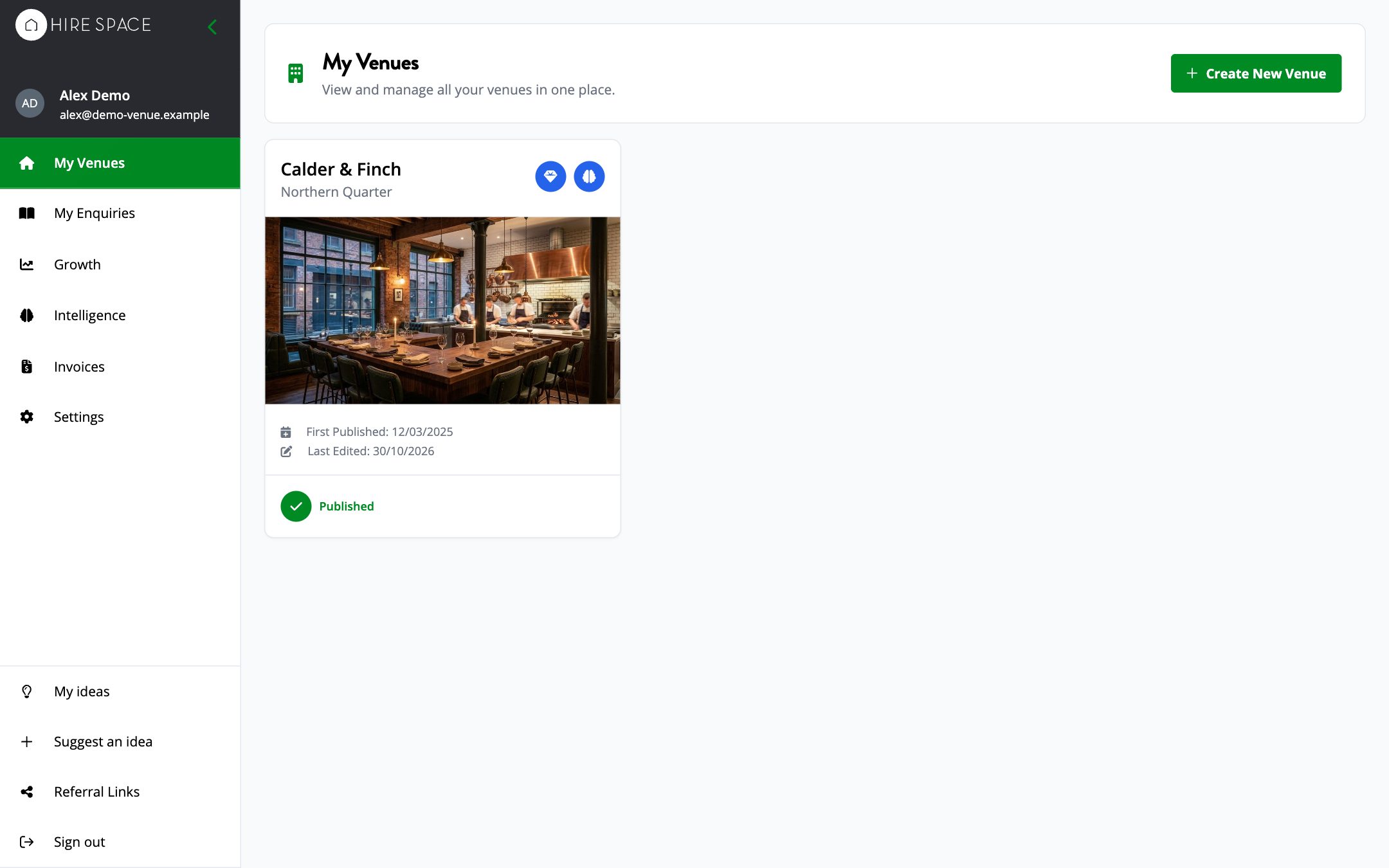
- In the sidebar, click My Venues, then choose your venue.
- Open the Spaces tab, click the space and open the Details tab.
- In the Specialised Profile you want, scroll to Event Tiles.
- Click Auto-generate Tiles, then click Confirm in Replace existing tiles?. This replaces any tiles the profile already has.
- Wait about a minute and keep the page open. The tiles appear when they are ready.
- Check the tiles. To change one, edit it as below.
Add or edit Event Tiles yourself
Write your own tiles, or change a draft, when you want to choose the events and reasons yourself. Tiles save when you click Save Tiles.
- In Event Tiles, click Add Event Tile.
- Under Features, list up to three features that matter most for this profile.
- Set Pricing to a short price level, such as Mid-range or Premium.
- In Competitive differentiator, write one sentence on what sets the space apart.
- The window starts with three tiles. For each, enter the Event type, a Sub-title of about five words and exactly three benefits. Fill in all three before you save.
- Click Save Tiles.
Generate FAQs automatically
Let Hire Space draft the questions and answers, then check them before you save.
- In the same Specialised Profile, scroll to FAQs.
- Click Auto-generate FAQs, then click Confirm in Generate FAQs?.
- Wait about a minute and keep the page open.
- Review the questions and answers, edit anything that isn’t right, then click Create FAQs.
Add FAQs yourself
Write your own questions and answers when you know what clients ask you most. FAQs save when you click Create FAQs.
- In FAQs, click Add FAQs.
- Enter a question and its answer.
- Click Add another question for more, up to 10 at a time.
- Click Create FAQs.
Good to know
- Event Tiles and FAQs save as soon as you click Save Tiles or Create FAQs. You don’t need to click the profile’s Update button.
- Event Tiles show on your space page on hirespace.com. FAQs appear near the bottom of your space page and in the venue details clients open while comparing quotes.
- Each Specialised Profile has its own tiles and FAQs, so tailor them. Dining FAQs might cover menus and dietary needs, while Business FAQs might cover AV and breakout rooms.
- Good FAQs cover what clients ask before booking: catering, accessibility, AV, access times and the nearest station.
- Always check automatic drafts. You know your venue best, and anything wrong will lead to the wrong enquiries.
- To change an FAQ, click its edit icon and then Update FAQ. To remove it, click its bin icon, then Delete.
Troubleshooting
The automatic draft failed.
You’ll see “Failed to generate tiles” or “Failed to generate FAQs”. Wait a moment and try again. If it keeps failing, add them yourself.
Still need help?
Email the venue team and we will get back to you.