Guided tour
Private Pricing Notes
Give our pricing engine the context behind your prices, for your whole venue or one space, without showing it to clients. This short tour shows you where to add them: click the highlighted parts of the screen to move on, or use the arrow keys.
Read the video transcript
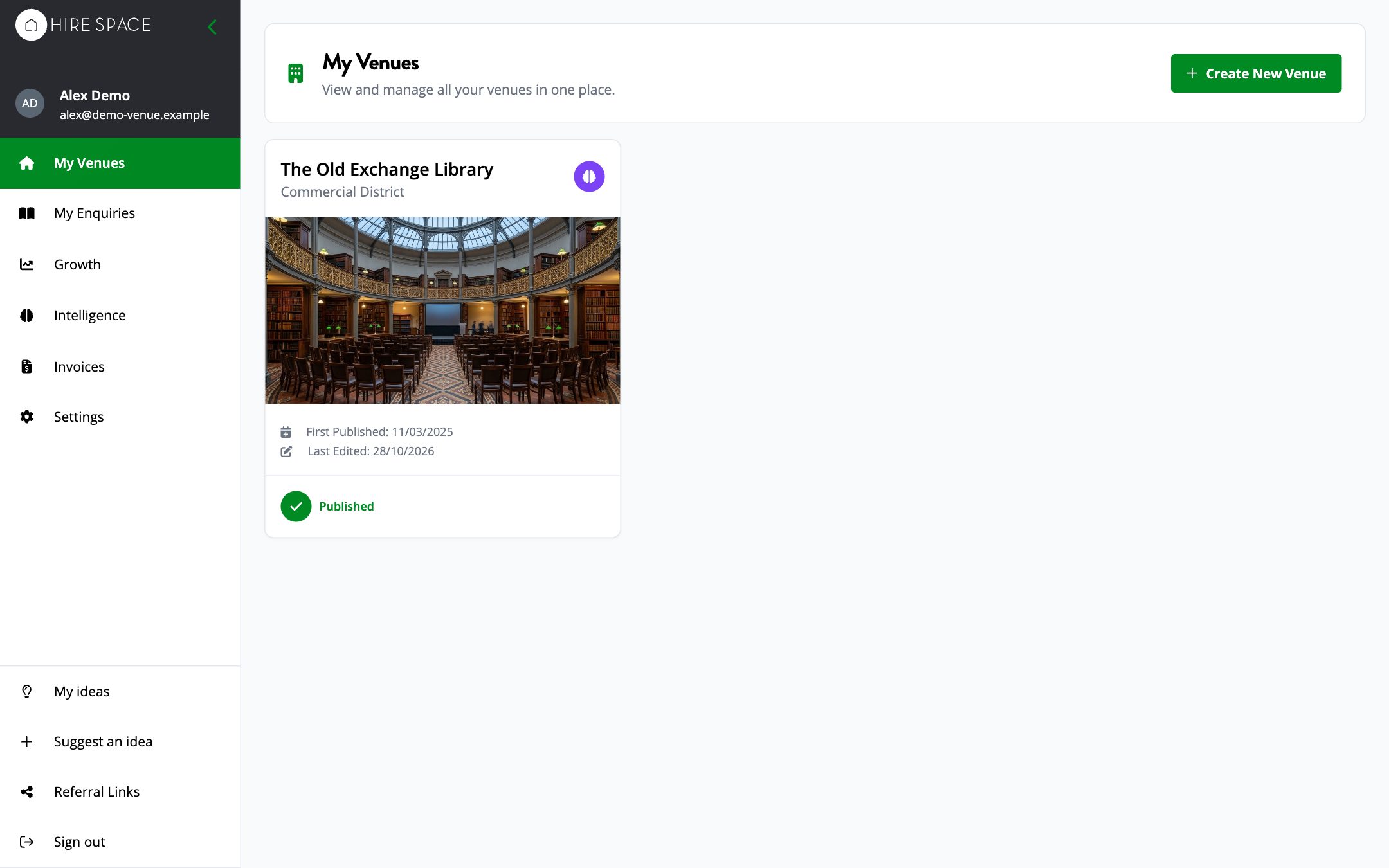
Private pricing notes tell our pricing engine about pricing rules it can't see on your public listing, such as a weekend discount or a minimum spend. We use them only to make your Instant Quotes more accurate, and clients never see them. Any admin of your venue can add them, for the whole venue or for one space. In the sidebar, click My Venues, then choose your venue. Next, click Venue Details. Scroll to Private pricing notes and write your notes in plain English. Be specific about the rule and when it applies. Venue notes apply to every space that has no notes of its own. Then scroll to the bottom and click Update venue details. For rules that only apply to one room, click Spaces. Choose the space, here The Reading Room. Next, click Pricing. Scroll to Private pricing notes and write the notes for this space. For that space, they take priority over your venue notes. Then click Update pricing notes. Your notes are saved, and we use them the next time we create an Instant Quote for your venue. Clients never see them, but they can inform the estimated prices clients see. Update your notes when your pricing changes. The full steps are in the help article.
Private Pricing Notes tell our pricing engine about pricing rules it can’t see on your public listing. We use them only to make your Instant Quotes more accurate, and clients never see them.
Who can use it
- Any admin of your venue, on any plan.
What to write
Think of it as a quick note to our pricing engine. For example:
- “We do 50% off room hire at weekends because we’re in the City and weekend demand is low.”
- “Minimum spend of £5,000 for evening hire after 6pm on Fridays and Saturdays.”
- “Catering packages are 15% cheaper for bookings over 100 guests.”
- “January and February room hire is usually 25 to 30% lower than the rest of the year.”
Be specific. “We’re flexible on price” doesn’t help us. “Room hire is negotiable down to £2,500 for charity bookings” does.
Best practice
- Cover what isn’t on your public price list. If a rule is already shown on your venue page, we know about it.
- Put space rules on the space. A venue-wide weekend discount goes on the venue. A “this room only” rule goes on the space.
- Update notes when your pricing changes. Out-of-date notes make estimates less accurate, not more.
- Write in plain English. No special format is needed.
Before you start
- Have your pricing rules to hand: discounts, minimum spends, what your packages include and when each applies.
Add notes for your whole venue
Venue notes cover pricing rules that apply across your venue, such as a weekend discount. They apply to every space that has no notes of its own.
- In the sidebar, click My Venues, then choose your venue.
- Open the Venue Details tab.
- Scroll to Private pricing notes and write your notes.
- Scroll to the bottom of the page and click Update venue details. If a message warns that the venue will be set to unpublished, you can continue: saving your notes doesn’t change whether your venue is live.
Add notes for one space
Space notes cover rules that only apply to one room. For that space, they take priority over your venue notes.
- In the sidebar, click My Venues, choose your venue and open the Spaces tab.
- Choose the space and open its Pricing tab.
- Scroll to Private pricing notes and write the notes for this space.
- Click Update pricing notes.
Good to know
- Your notes are used the next time we create an Instant Quote for your venue.
- Space notes take priority over venue notes for that space. A space without notes uses the venue notes, or none if the venue has none.
- Notes are optional. Without them, Instant Quotes still use your past quotes and comparable venues. They just miss the extra context.
- Notes are internal. Clients never see your notes, but they can inform the estimated prices clients see in Instant Quotes, on hirespace.com and in Deep Venue Research. Hire Space staff can read them.
- Notes are separate from the public pricing on your listing. Public prices are what clients see. Notes only refine the estimate.
Troubleshooting
My estimates still look wrong after adding notes.
Check the space doesn’t have its own notes that override the venue notes, and that your public pricing is current. See Instant Quotes for everything that feeds the estimate.
Still need help?
Email the venue team and we will get back to you.