Guided tour
Publish your venue and spaces
Send your venue for review, publish its spaces and check that clients can see them. For any admin of the venue. This short tour shows you around: click the highlighted parts of the screen to move on, or use the arrow keys.
Read the video transcript
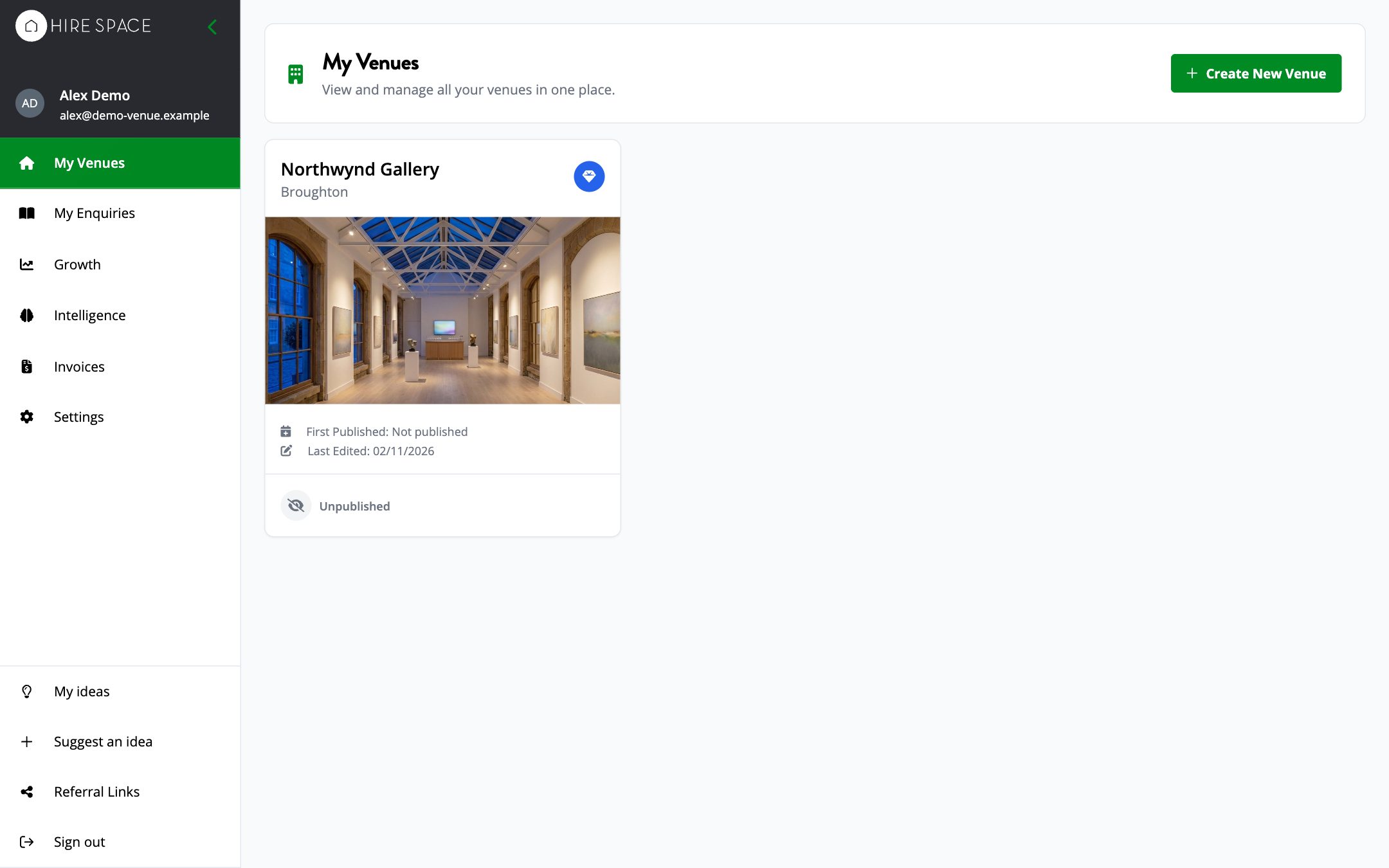
Your venue goes live in two parts. You send the venue for review and our team approves it, then you publish each space you want clients to see. Any admin of the venue can do this, and here's how. Start in the sidebar. Click My Venues, then choose your venue. At the top right of the venue page, next to Status, click Unpublished. In Send this venue for review, click Send to review. The status changes to Awaiting approval, and you can keep editing while you wait. Next, publish your spaces. Open the Spaces tab, where each space card shows its own status, and click the space. At the top right, next to Status, click Unpublished. In Publish this space, click Publish space. Repeat for each space you want clients to see. Our team checks your profile by hand. Once your venue is approved, the Status button reads Published, and so do the spaces you published. Clients only see a space when both the venue and that space are published. Here's what clients see: your live venue page on hirespace.com. To find it, search for your venue's name on hirespace.com. If your venue has been awaiting approval for more than a week, email venues at hirespace.com. The full steps are in the help article.
Your venue goes live in two parts. You send the venue for review and our team approves it, then you publish each space you want clients to see.
What each status means
| Status | What it means |
|---|---|
| Unpublished | Not visible to clients. You can edit everything. |
| Awaiting approval | Your venue is with our team for review. |
| Published | Live on hirespace.com. |
| Dormant | Not live. Click the status and choose Send to review to reactivate the venue. |
On the Spaces tab, each space card shows its own status.
What happens during review
A member of our team checks your profile by hand. We proofread your descriptions, check your address and photos and make sure nothing is missing or filled in wrongly. Complete profiles get better enquiries, which is why we review every venue.
A venue with many spaces takes longer to check.
Before you start
- Complete your venue and at least one space. See What a space needs to go live.
Send your venue for review
Send your venue for review once it’s complete. Our team checks it before it goes live.
- In the sidebar, click My Venues, then choose your venue.
- At the top right of the venue page, next to Status:, click Unpublished.
- In Send this venue for review?, click Send to review.
The status changes to Awaiting approval. You can keep editing while you wait.
Publish your spaces
Publish each space you want clients to see. Clients only see a space when both the venue and that space are published.
- On your venue page, open the Spaces tab and click the space.
- At the top right, next to Status:, click Unpublished.
- In Publish this space?, click Publish space.
Repeat for each space you want clients to see. A space needs a price before it can be published: if it has none, you see Add a price to publish instead, and Add price takes you to its Pricing tab.
Check your venue is live
Once our team has approved your venue, check that it and your spaces are live:
- On your venue page, the Status button reads Published.
- On the Spaces tab, the spaces you want clients to see show Published.
- To find your live venue page, search for your venue’s name on hirespace.com.
Clients only see a space when both the venue and that space are published. A space only appears in search once its Specialised Profile also has at least one photo.
Troubleshooting
We got a welcome email and don’t know who listed us.
Someone at your venue may have signed up. See How Hire Space works for venues, or email venues@hirespace.com.
My venue has been awaiting approval for more than a week.
Email venues@hirespace.com with your venue name and we’ll check on it.
I’m asked to confirm before saving changes to a published venue.
The message says the venue will be set to unpublished, but saving your changes keeps it live. If your status ever shows Unpublished, send the venue for review again.
Still need help?
Email the venue team and we will get back to you.