Guided tour
Fix your venue's map location
Correct your address and move the map pin so clients see your venue in the right place. This short tour shows you how: click the highlighted parts of the screen to move on, or use the arrow keys.
Read the video transcript
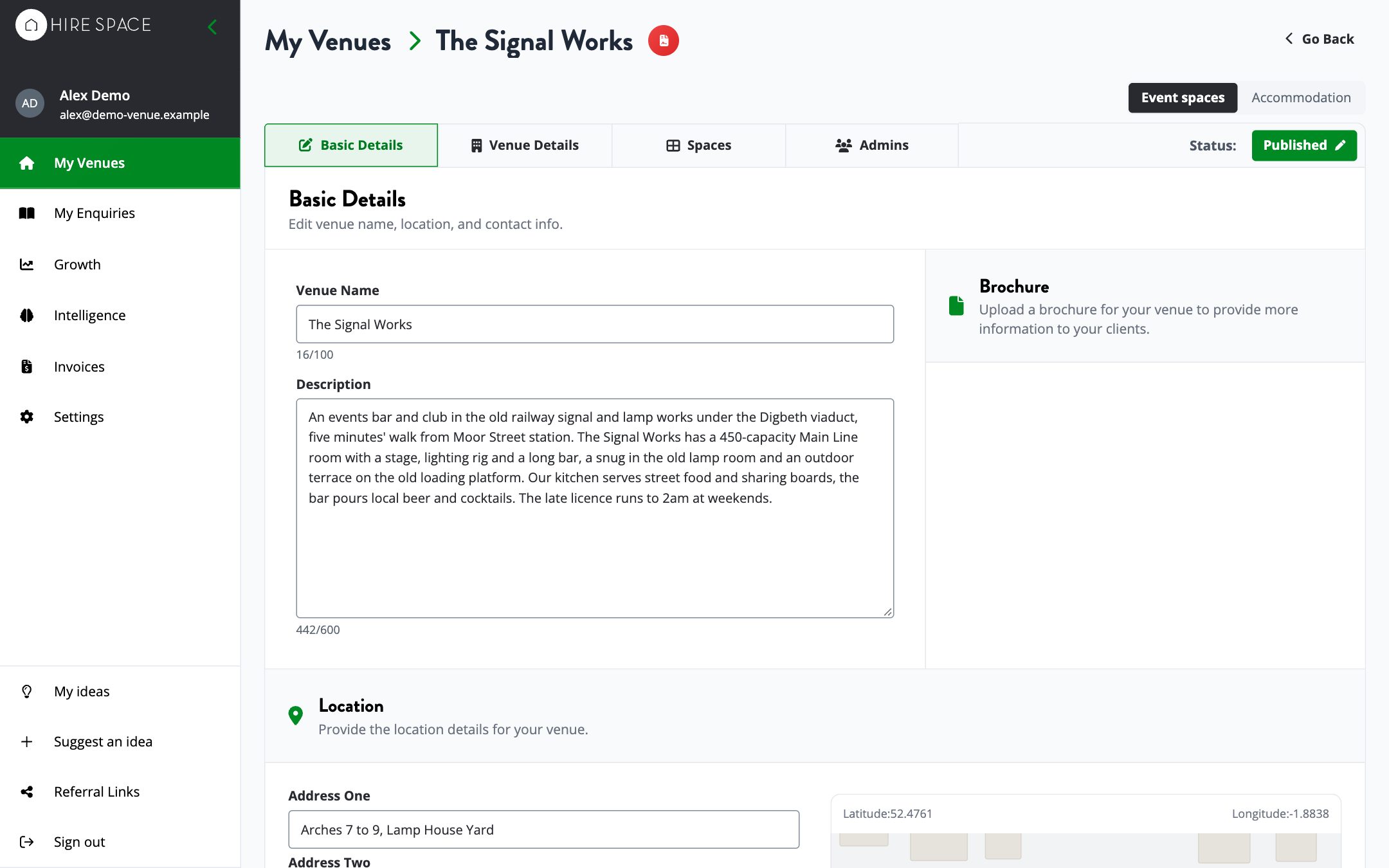
Your venue page on hirespace.com has a Location section, with a map of where you are and a link to open it in Google Maps. If the pin is in the wrong place, you can fix it from your dashboard. Anyone who manages your venue can do this, on any plan. Open your venue from My Venues. Next, click Basic Details, and scroll down to Location. Start with your address. Check Address One, Address Two, Locality, Postcode and City match the way your address appears on Google. The postcode needs a space between its two parts, like B5 6ZZ. If the pin is still in the wrong place, move it by hand. Next, click Manually set venue position. Drag the map until the pin sits on your entrance: the door clients should use, not the middle of the building. Then click Update venue position. The new Latitude and Longitude appear above the map. Next, scroll to the bottom of the page and click Update basic details. If you're already published, click Continue to confirm. Here's what clients see. The Location section of your venue page shows the map at the position you saved, and the Google Maps link uses the same position. If Google Maps still shows the wrong place, that comes from your Google Business Profile, so update it with Google. The full steps are in the help article.
The Location section of your venue page on hirespace.com shows a map of where you are, with a link to open it in Google Maps. If the pin is in the wrong place, fix your address and move the pin from your dashboard.
Who can use it
- Any admin of your venue, on any plan.
Check your address
Start with your address. It should match the way it appears on Google.
- In the sidebar, click My Venues, then choose your venue.
- On the Basic Details tab, scroll to Location.
- Check Address One, Address Two, Locality/Neighbourhood, Postcode and City match the way your address appears on Google.
- Check the postcode has a space between its two parts, for example SE16 4DG, not se164dg.
When you change the postcode and move to the next box, the pin jumps to the centre of that postcode. So fix your address first, then move the pin.
Move the map pin to your entrance
If the pin on the map is still in the wrong place, move it by hand. The Google Maps link on your venue page uses the position you save.
- Under the map, next to “Venue location not right?”, click Manually set venue position.
- Drag the map until the pin sits on your entrance.
- Click Update venue position. The new Latitude and Longitude appear above the map.
- Scroll to the bottom of the page and click Update basic details. If your venue is live, a message asks you to confirm: click Continue.
Good to know
- Put the pin on the door clients should use, not the middle of the building. The Google Maps link on your venue page uses the same position.
- If you moved the pin by mistake, click Cancel while you are still moving it. Once you’ve clicked Update venue position, move the pin again before you save, or leave the page without saving.
- If you edit the postcode after placing the pin, the pin moves back to the centre of the postcode. Check it before you save.
Troubleshooting
Google Maps still shows the wrong place or an old photo of my building.
That comes from your Google Business Profile, not from Hire Space. Update or claim your listing with Google.
Still need help?
Email the venue team and we will get back to you.