Guided tour
Venue highlights
Add badges to your space pages that give clients a reason to choose you. This short tour shows you how: click the highlighted parts of the screen to move on, or use the arrow keys.
Read the video transcript
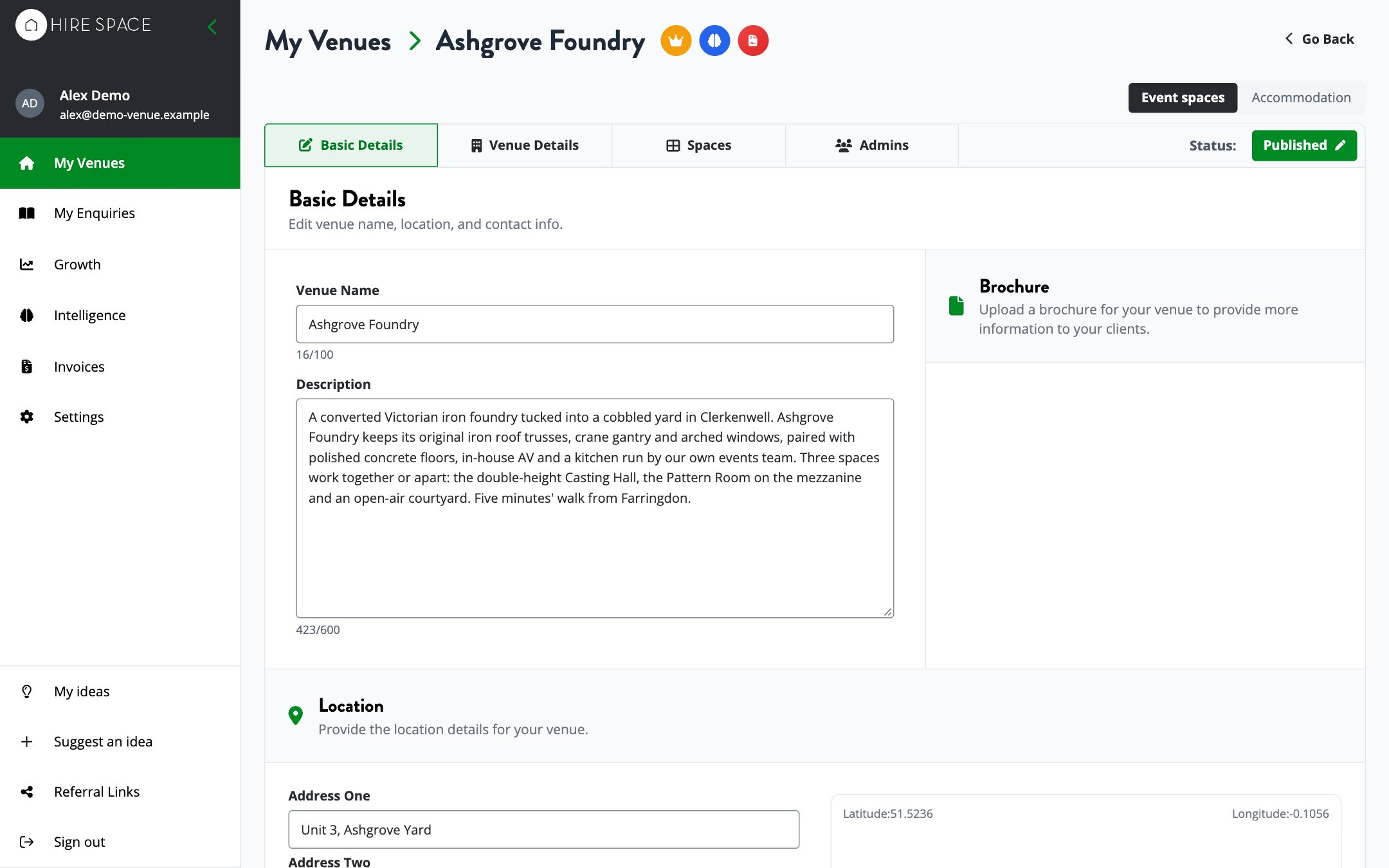
Venue highlights add badges to your space pages on hirespace.com that give clients a reason to choose you: a recent opening, a recent refurbishment, a special offer or awards. Highlights are part of Growth Core and Growth Prime. Open your venue from My Venues. Next, click Venue Details. Venue highlights is at the top. If your venue has just opened, or is about to, turn on Recently opened and set the Opening date. Only turn on highlights that are true. Ashgrove Foundry isn't new, so here it stays off. After a major refurbishment, turn on Recently refurbished and set the Refurbishment date. Here, March 2026. To promote a deal, turn on Special offer and write it in one short line, up to 100 characters. Then tick Set an expiry date, and choose the date. Under Awards and recognition, click Add award. Enter the award's title, who awarded it and the year, and make sure Show on profile is on. Next, scroll to the bottom of the page and click Update venue details. If your venue is live, click Continue to confirm. Here's what clients see. Your space pages on hirespace.com show your highlights as a badge, one at a time. Here, the award. Keep your offer current, and switch a highlight off when it no longer applies. The full steps are in the help article.
Venue highlights add badges to your space pages on hirespace.com that give clients a reason to choose you: a recent opening, a recent refurbishment, a special offer or awards. Highlights are part of Growth Core and Growth Prime.
Who can use it
- Growth Core and Growth Prime venues. Without Growth Core or Growth Prime, the section shows Unlock venue highlights. See Free listing, Growth and Intelligence.
- To upgrade, book a call with our team, or click Upgrade Now under Unlock venue highlights, then Book a Meeting.
Why it helps
- Planners get a concrete reason to pick you. When they compare similar venues, a recent refurbishment, a current offer or an award can tip the choice.
- Your sales team can promote an offer without changing your prices. A special offer with an expiry date suits quiet dates or a new package.
- New and refurbished spaces get noticed. The Recently opened and Recently refurbished badges tell planners your venue has something new to see.
- You stay in control. You turn highlights on and off yourself, whenever you need to.
Before you start
- Only turn on highlights that are true. A badge that isn’t accurate costs you trust with clients.
Open your venue highlights
All four highlights sit in one section of your venue’s details. Open it first, then turn on the highlights you want.
- In the sidebar, click My Venues, then choose your venue.
- Open the Venue Details tab. Venue highlights is at the top.
Show that you’ve recently opened
Use this badge if your venue has just opened or is about to.
- In Venue highlights, turn on Recently opened.
- Set the Opening date. You can choose a future date if you are about to open.
- Scroll to the bottom of the page and click Update venue details. If your venue is live, a message asks you to confirm: click Continue.
Show a recent refurbishment
Use this badge after a major refurbishment, so planners know there’s something new to see.
- In Venue highlights, turn on Recently refurbished.
- Set the Refurbishment date of your most recent major refurbishment.
- Scroll to the bottom of the page and click Update venue details. If your venue is live, a message asks you to confirm: click Continue.
Add a special offer
Promote a deal, such as a discount on quiet dates or a new package, without changing your prices.
- In Venue highlights, turn on Special offer.
- Write your offer in one short, specific line (up to 100 characters), for example “15% off weekday bookings”.
- Optionally, tick Set an expiry date (optional) and choose the Expiry date.
- Scroll to the bottom of the page and click Update venue details. If your venue is live, a message asks you to confirm: click Continue.
Add your awards
Show awards and recognition your venue has won. You can add up to five.
- In Venue highlights, under Awards & recognition, click Add award.
- Enter the award’s title, who it was awarded by and the year.
- Make sure Show on profile is on.
- Repeat for each award, up to five.
- Scroll to the bottom of the page and click Update venue details. If your venue is live, a message asks you to confirm: click Continue.
Good to know
- Highlights are set for the whole venue and apply to all its spaces. If you manage several venues, each has its own highlights.
- Highlights show as badges on your space pages on hirespace.com, one badge at a time. An award shows first, then a special offer, then a recent refurbishment, then a recent opening. So if you have an award on show, your offer won’t appear as a badge.
- Badges are time-limited. Recently opened shows for a short time after your opening date and Recently refurbished for up to a year after your refurbishment date.
- Keep your offer current. An expired or vague offer is worse than none. When an offer ends, switch Special offer off and click Update venue details.
- Pair “Recently refurbished” with new photos. If your gallery still shows the old look, the badge works against you. See Venue photography guide.
- A launch offer under Special offer works well alongside Recently opened.
- To turn a highlight off, switch it off and click Update venue details. To remove an award, click the remove icon on that award.
Troubleshooting
The switches are greyed out.
Your venue isn’t on a Growth plan. Upgrade to Growth Core or Growth Prime to use highlights: click Upgrade Now, then Book a Meeting.
Still need help?
Email the venue team and we will get back to you.