Guided tour
Add your social media handles
Add your venue's social handles so we can tag you when we feature your venue. This short tour shows you how: click the highlighted parts of the screen to move on, or use the arrow keys.
Read the video transcript
Add your venue's social media handles to your Hire Space profile, so we can tag your venue when we feature it, for example in Social Shoutout Videos. You need to be an admin of the venue, and each venue has its own handles. Your handle is the name after the at sign on your account, and it's also the last part of your profile's web address. Copy it from each account as your venue, not your personal account. In the sidebar, click My Venues, then choose your venue. Next, click Venue Details, and scroll down to Socials. There's a box for each platform: Instagram, YouTube, TikTok, X, Facebook and LinkedIn. In the box for each platform you use, paste the handle or the full profile address. The handle works with or without the at sign. Here, the full address of the venue's LinkedIn company page. Click away from the box, and it changes to show just the handle. Leave a box empty for any platform you don't use. Next, scroll to the bottom of the page and click Update venue details. If your venue is live, click Continue to confirm. Your handles are saved, and we can tag your venue when we feature it. If you were featured but not tagged, check your handles here and click Update venue details. The full steps are in the help article.
Add your venue’s social media handles to your Hire Space profile. We use them to tag your venue when we feature it on social media, for example in Social Shoutout Videos. They don’t appear on your venue page on hirespace.com.
Before you start
- You need to be an admin of the venue.
- Be signed in to the accounts you want to add, so you can copy each handle. You only need the platforms you use.
Find your handle on each platform
Your handle is the name after the @ on your account, and it’s also the last part of your profile’s web address. Open each account as your venue, not your personal account, and copy the handle or the full address from there.
| Platform | Where to find it | What to paste |
|---|---|---|
| Open your profile. Your username is at the top, above your photo and bio. | yourvenue or instagram.com/yourvenue | |
| Open your venue’s Page and look at the address bar: the handle is the part after facebook.com/. | yourvenue or facebook.com/yourvenue | |
| Open your venue’s company page (not your personal profile) and look at the address bar: the handle is the part after /company/. | your-venue or linkedin.com/company/your-venue | |
| YouTube | Open your channel. The handle starts with @ and sits under the channel name. | @yourvenue or youtube.com/@yourvenue |
| TikTok | Open your profile. The handle starts with @ and sits under your profile name. | @yourvenue or tiktok.com/@yourvenue |
| X (Twitter) | Open your profile. The handle starts with @ and sits under your display name. | @yourvenue or x.com/yourvenue |
Addresses that won’t work
Some profile addresses don’t contain a handle, so we can’t take one from them.
- Facebook: if your Page’s address reads facebook.com/profile.php?id= followed by a number, or facebook.com/people/, your Page has no username yet. Set one in your Page’s settings on Facebook first, then copy the new address.
- YouTube: an address with /channel/ followed by a long code (for example youtube.com/channel/UC…) is your channel ID, not your handle. Copy the @ handle under your channel name instead.
- LinkedIn: a personal profile address (linkedin.com/in/) won’t link to your venue. Use your company page.
Add your handles to your profile
Once you have your handles, save them on your venue’s details.
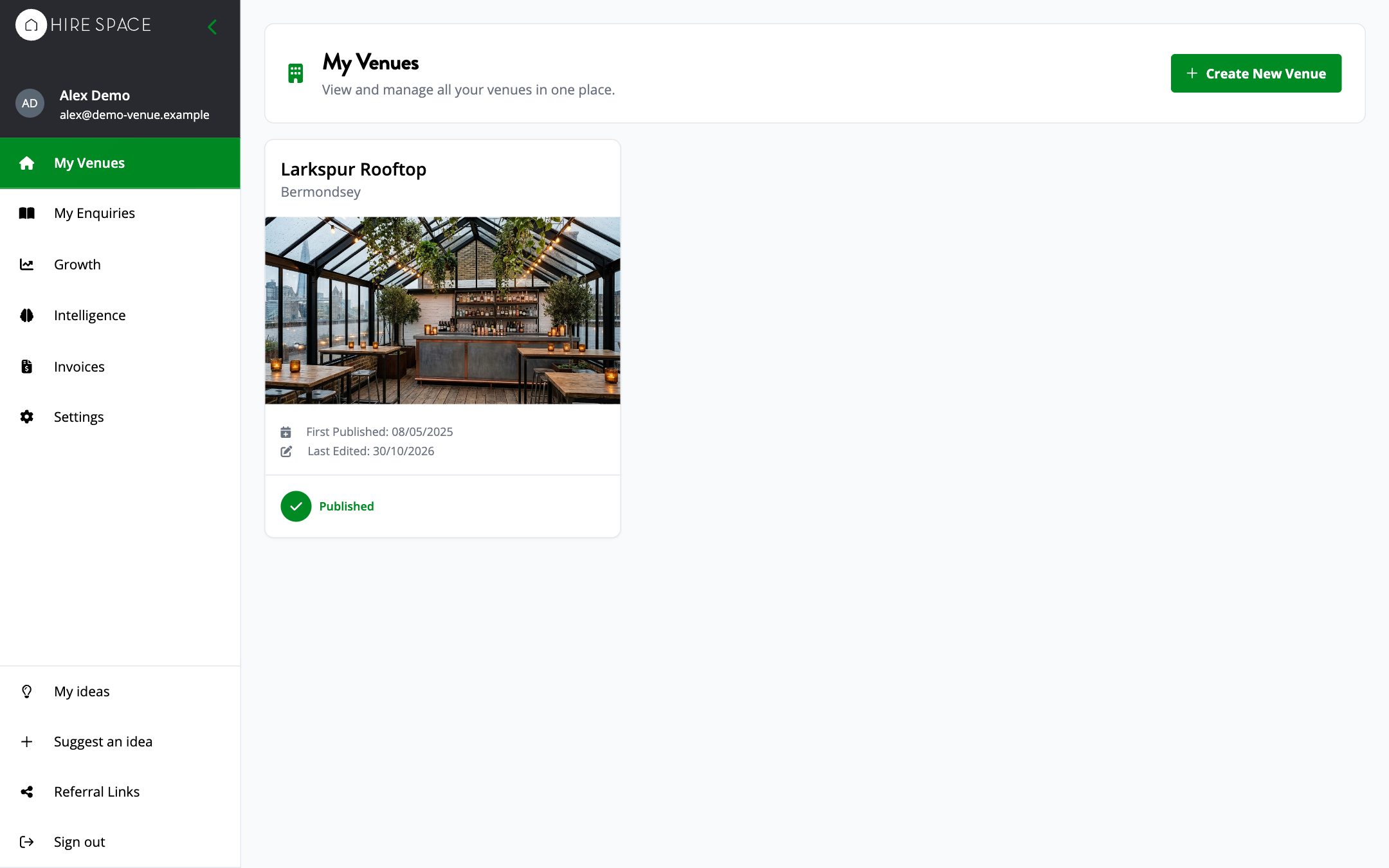
- In the sidebar, click My Venues, then choose your venue.
- Open the Venue Details tab.
- Scroll to Socials.
- In the box for each platform you use, paste the handle or the full profile address.
- Click away from the box. If you pasted an address, the box changes to show just the handle.
- Scroll to the bottom of the page and click Update venue details. If your venue is live, a message asks you to confirm: click Continue.
Good to know
- You can paste the handle with or without the @.
- Make sure each address is in the right box. If you paste an address from a different platform, for example a Facebook link in the Instagram box, Update venue details won’t save anything and no error appears.
- The box doesn’t check that the account exists. After saving, check each handle against the table above.
- Leave a box empty for any platform you don’t use.
- Handles are set per venue, so each venue in a group has its own.
Troubleshooting
We were featured but not tagged.
Check that the handle in Socials is correct and that you clicked Update venue details. We can only tag the accounts saved on your profile. For LinkedIn and Facebook we also need to link your page on our side, so if a correct handle still isn’t tagged, email venues@hirespace.com.
Update venue details does nothing.
Check each box in Socials holds an address or handle for that platform. A link from a different platform stops the whole tab saving.
Still need help?
Email the venue team and we will get back to you.