Guided tour
Add and order photos
Upload photos for each Specialised Profile on a space, change their order and delete the ones you no longer need. This short tour shows you around: click the highlighted parts of the screen to move on, or use the arrow keys.
Read the video transcript
Photos sit inside each Specialised Profile on a space, so a space set up for events and dining can show different photos for each. Clients see them in the order you set. Any admin of your venue can add them. In My Venues, choose your venue. Next, open the Spaces tab and click the space. Then open the Details tab, and scroll to Photos in the profile you want to update. To add a photo, click the Add/Drop photo tile, or drag a photo onto it. Choose one JPEG or PNG under 3 MB, and wait for the upload to reach 100%. Repeat for each photo. To change the order, click and hold a photo, then drag it to its new position and let go. Move your strongest shots to the front. To delete a photo, hover over it and click the bin icon. In Delete Photo, click Confirm. Nothing is saved until you click Update followed by the profile name, here Update Events. If you delete a photo by mistake, leave the page without clicking Update and it comes back. Here's what clients see. On your space page on hirespace.com, the gallery shows your photos in the order you set, starting with your first photo. Most changes show within a few hours, and can take up to 24 hours. For tips on what to shoot, see the Venue photography guide. The full steps are in the help article.
Photos sit inside each Specialised Profile on a space, so a space set up for Business and Dining can show different photos for each. Add at least five photos per profile before you send a space for review. Any admin of your venue can add them.
Before you start
- Have your photos saved as JPEG or PNG files. Other formats, including iPhone HEIC photos, are not accepted.
- Keep each photo under 3MB. The upload accepts larger files, but smaller ones keep your pages quick to load. Large landscape photos work best.
Upload photos to a Specialised Profile
Upload photos when you set up a profile or want to refresh how it looks. They’re saved to the profile when you click Update.
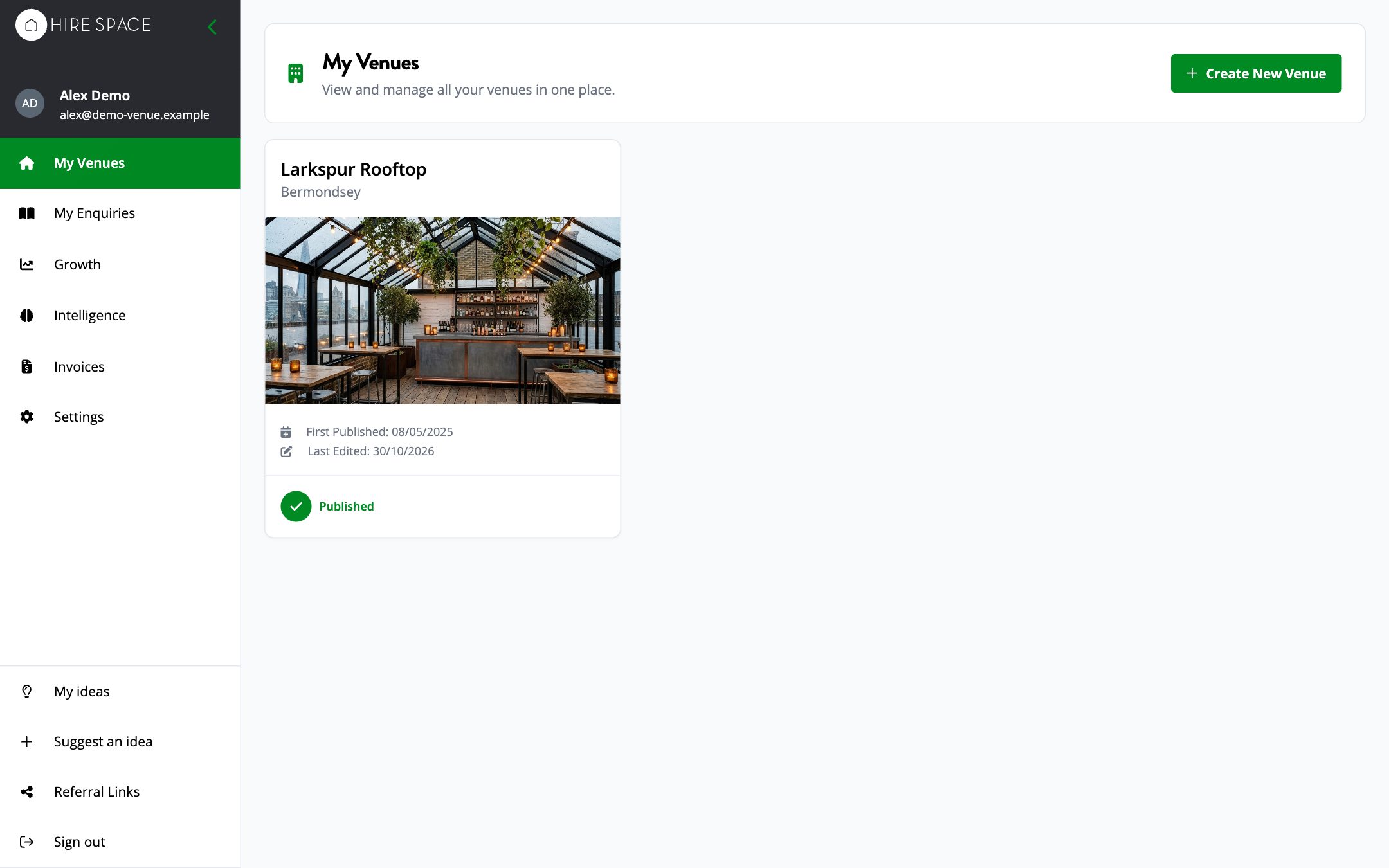
- In the sidebar, click My Venues, then choose your venue.
- Open the Spaces tab and click the space.
- Open the Details tab and scroll to Photos in the Specialised Profile you want to update.
- Click the Add/Drop photo tile, or drag a photo onto it, and choose one photo.
- Wait for the upload to reach 100%. Repeat for each photo.
- At the bottom of that profile, click Update followed by the profile name, for example Update Business.
Change the order of your photos
Clients see your photos in the order you set, so move your strongest shots to the front. The new order is saved when you click Update.
- In Photos, click and hold a photo.
- Drag it to its new position and let go.
- Click Update followed by the profile name to save the new order.
Delete a photo
Remove photos that no longer show the space as it is. The photo only goes once you save.
- In Photos, hover over the photo and click the bin icon.
- In Delete Photo?, click Confirm.
- Click Update followed by the profile name to save.
If you delete a photo by mistake, leave the page without clicking Update and it comes back.
Good to know
- You upload one photo at a time.
- Put your best photo first. Clients see your photos in the order you set.
- For tips on what to shoot, see the Venue photography guide.
- Most changes show on hirespace.com within a few hours, and can take up to 24 hours.
- The first photo in each profile is marked Search Image.
- A space with no photos doesn’t appear in search results.
Troubleshooting
My photo won’t upload.
Check it is a JPEG or PNG. Photos taken on an iPhone are often saved as HEIC: export them as JPEG first, or change your camera settings to “Most Compatible”.
My new photos aren’t showing on my profile.
Check you clicked Update for that profile after uploading. If you did, wait up to 24 hours for the change to appear.
Still need help?
Email the venue team and we will get back to you.