Guided tour
Unpublish or remove your venue
Hide your venue or a space from clients for a while, delete a space and find out how to leave Hire Space for good. For any admin of the venue. This short tour shows you around: click the highlighted parts of the screen to move on, or use the arrow keys.
Read the video transcript
You can hide your venue or a single space from clients at any time, for example during a refurbishment, and delete a space you no longer hire out. Any admin of the venue can do this, and here's how. Start in the sidebar. Click My Venues, then choose your venue. To unpublish your venue, look at the top right. Next to Status, click Published. In Unpublish this venue, click Unpublish venue. Your venue is hidden from clients until you send it for review again, and you can still edit it. If only one space is unavailable, open the Spaces tab and click the space. At the top right, next to Status, click Published. In Unpublish this space, click Unpublish space. The space is hidden until you publish it again. If this is your only published space, your whole venue is hidden too and goes back to Awaiting approval. It goes live again once our team approves it. To delete a space you no longer hire out, click your venue's name to go back to your venue page, and open the Spaces tab. On the space's card, click the three-dot menu. Click Delete space, then click Yes to confirm. The space is gone from your Spaces tab. If you delete one by mistake, it is not lost. Email venues at hirespace.com as soon as possible. To leave Hire Space for good, email venues at hirespace.com from an admin's email address, with your venue's name. The full steps are in the help article.
You can hide your venue or a single space from clients at any time, for example during a refurbishment. To leave Hire Space for good, email us so we can close your account properly.
Who can use it
- Any admin of your venue can unpublish it or change its spaces. To remove the venue for good, email us from an admin’s email address.
Unpublish your venue for a while
Unpublish your venue when you need to hide it from clients for a time, for example during a refurbishment. You can still edit it while it’s unpublished.
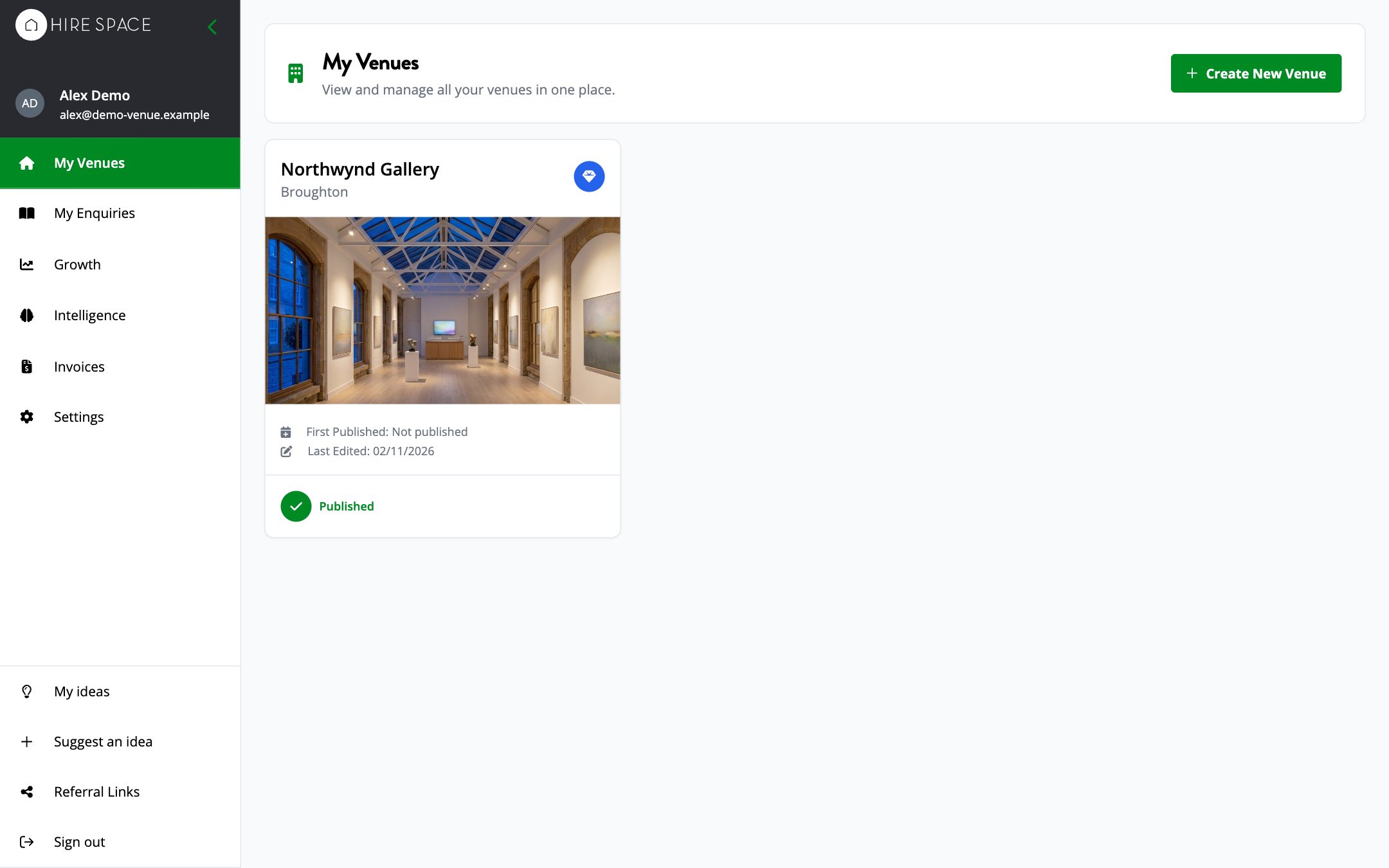
- In the sidebar, click My Venues, then choose your venue.
- At the top right, next to Status:, click Published.
- In Unpublish this venue?, click Unpublish venue.
Your venue is hidden from clients until you send it for review again.
Unpublish a single space
Unpublish a space when only that space is unavailable for a while.
- On your venue page, open the Spaces tab and click the space.
- At the top right, next to Status:, click Published.
- In Unpublish this space?, click Unpublish space.
The space is hidden from clients until you publish it again. If this is your only published space, your whole venue is hidden too and goes back to Awaiting approval. It goes live again once our team approves it.
Delete a space
Delete a space you no longer hire out. If you delete one by mistake, see Troubleshooting below.
- On your venue page, open the Spaces tab.
- On the space’s card, click the three-dot menu.
- Click Delete space, then click Yes to confirm.
Remove your venue from Hire Space permanently
Do this if you want to leave Hire Space for good.
- Email venues@hirespace.com from an admin’s email address.
- Tell us the venue name and that you want it removed.
We deactivate your profile and stop sending you reminders and notifications.
A free listing has no fee, and you can leave at any time. Commission is only ever due on bookings that came through Hire Space. Before you go:
- Any booking you have already confirmed must still go ahead as agreed.
- Enquiries we sent you before you left still carry commission if they book.
Good to know
- While your venue is unpublished you can still edit it, and you can send it for review whenever you are ready to go live again. See Publish your venue and spaces.
- Unpublishing doesn’t stop emails about enquiries you already have. To stop all emails, ask us to remove the venue.
- If only one person should stop getting emails, change their roles instead. See Manage admins.
- If you are leaving, we’d like to hear why. Your feedback helps us improve Hire Space for other venues.
Troubleshooting
I deleted a space by mistake.
The space is not lost, and we may be able to restore it. Email venues@hirespace.com with the venue and space name as soon as possible. Its Specialised Profiles may need adding again after it is restored.
The status still says Published after I unpublished.
Refresh the page. The change has saved, but the status can take a refresh to update.
Still need help?
Email the venue team and we will get back to you.