Guided tour
Create an account or join your company's
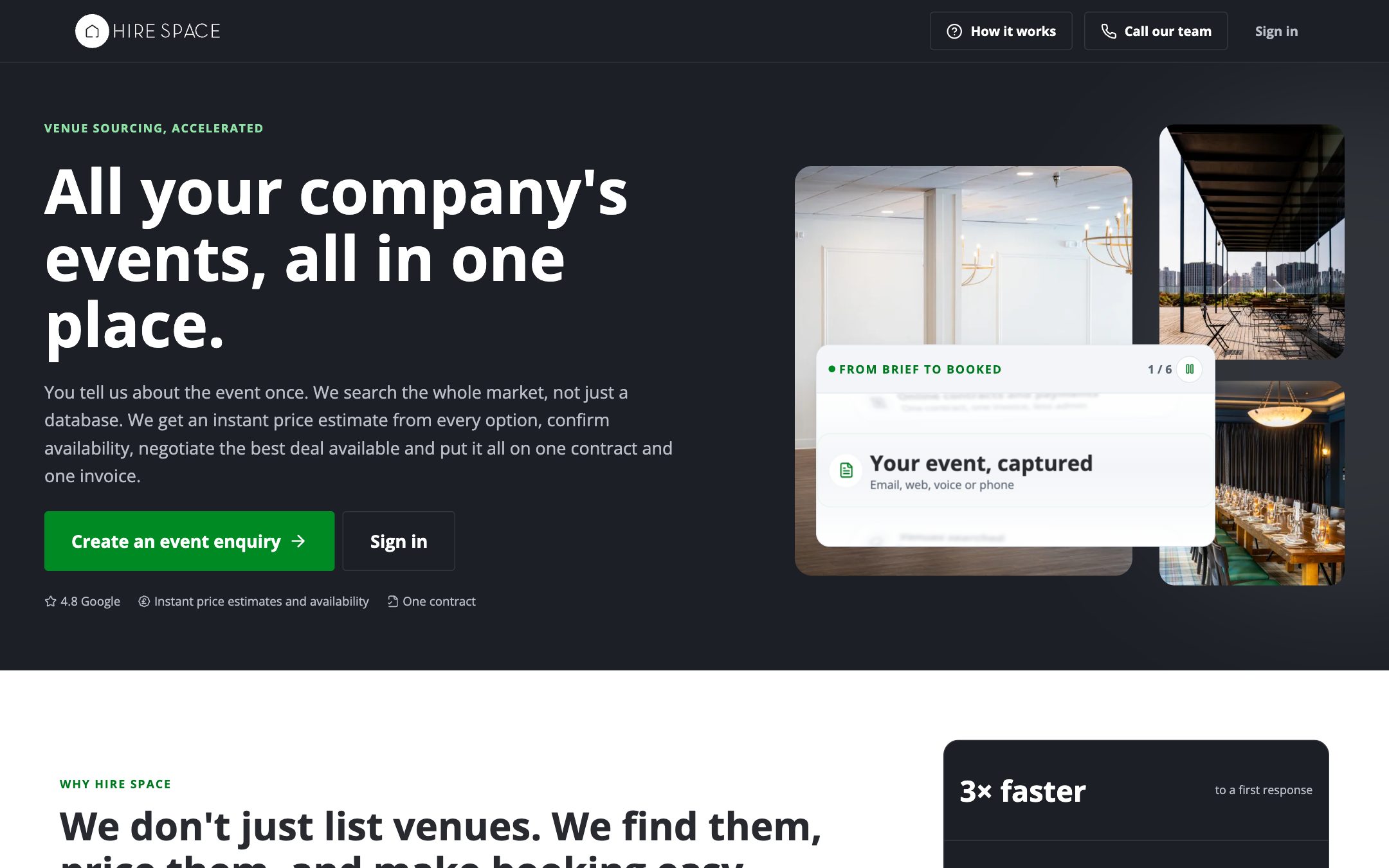
The ways into Hire Space: create an account with your first enquiry, sign up yourself with your work email or join from an invite. At the end, admins see how to invite a colleague. Click the highlighted parts of the screen to move on, or use the arrow keys.
Earlier in this series: Find your way around
You need an account to run enquiries in the Hire Space client platform, and it links you to your company. You can create one with your first enquiry, sign up yourself with your work email or join from an invite a colleague sends you.
Who can use it
- No account yet: create one with your first enquiry, or sign up with your work email.
- Your company uses Hire Space (preferred or Hire Space 360): sign up with your work email and we can link you to your company automatically. If we can’t, ask one of your company’s admins to invite you.
- Admins: invite colleagues with a link, or add them by email.
Why join your company’s account
- You see your team’s events. Once an admin puts you in a team, My Events shows your colleagues’ events as well as your own. See Users, roles and permissions.
- You start from your company’s venues. Anyone at your company can open its venue shortlists and send their venues a brief.
- Your events follow your company’s rules. On a Hire Space 360 company, your briefs are checked against its event policy and wait for any approval it needs.
- You have someone to ask. If your company has an account manager, their card is on your Home page.
Create an account with your first enquiry
If you’re booking an event, this is the quickest way in.
- Go to home.hirespace.com and click Create an event enquiry.
- Fill in the short form and click Continue.
- Click Create an account to continue, then sign up with Google, Microsoft or your email and a password.
- If we ask you to verify your email, enter the 5-character code we sent you and click Verify and continue.
Your event then opens at its brief. The Start an enquiry tour shows every step.
Sign up with your work email
To create an account without starting an enquiry:
- Go to home.hirespace.com and click Sign in.
- Choose Sign Up, then sign up with your work email and a password, or with Google or Microsoft.
- Verify your email with the code we send you.
If your company uses Hire Space and lets colleagues join from its email domain, we link you to your company once your email is verified. If we can’t link you, ask one of your company’s admins to invite you. There’s no way to request to join a company yourself.
Join your company from an invite link
If an admin has sent you an invite link:
- Open the link. You see your company’s invitation to join its team.
- Click Join with Google or Join with Microsoft, or fill in Full name, Email, Job title, Phone Number, Password and Confirm password.
- Click Join.
For admins: invite a colleague
You need to be an admin at your company to invite people.
- Sign in at home.hirespace.com and click Settings in the sidebar.
- On User management, click Copy Invite Link.
- The Invite a colleague popup shows your link. Copy or share it and send it to your colleague.
Each link lets one colleague join, so send each colleague their own. The popup shows when the link stops working (48 hours after it was made). For someone else, click Generate another link.
To add someone by email instead:
- On User management, click New User.
- Fill in their Email, Full name and Job title, and choose their Role and Team.
- Click Invite.
We set up their account and email them a link to set a password. See Users, roles and permissions.
What happens next
Once you’re in your company’s account, you can start your own enquiries. To see your colleagues’ events you need to be in a team: on My Events, click Find your team to ask to join one, and an admin decides. See Find your way around Hire Space.
Good to know
- The verification code works for 15 minutes. Letters aren’t case-sensitive.
- We only link you automatically from a verified work email, and only when exactly one company uses that email domain.
Troubleshooting
The page says “This invite link has expired” or “This invite link has already been used”.
Ask the admin who invited you for a new link.
I didn’t get the verification email.
It can take a minute to arrive. Check your spam or promotions folder, then click Send a new code.
I signed up but can’t see my company’s events.
We may not have been able to link you to your company, or you may not be in a team yet. Ask an admin at your company to invite you or add you to a team, or contact your account manager.
I see “Your company isn’t set up on Hire Space 360 yet”.
If a colleague already uses Hire Space, ask an admin at your company for an invite link. Otherwise, talk to us and we’ll get your company set up.
Still need help?
Contact your account manager, or email our team.