Guided tour
Company reports
See activity, spend and the savings we've negotiated across your company's events, and ask questions of your data. Reports needs access, which an admin or your account manager can arrange. Click the highlighted parts of the screen to move on, or use the arrow keys.
Reports shows activity, spend and savings across your company’s events, so you can see how much you’re booking, where the money goes and what we’ve saved you. You can also ask it questions in your own words.
Who can use it
- Hire Space 360 clients: Ask, Overview and Savings, with exports.
- Preferred clients: Overview and Savings.
- Everyone else signed in: Savings. Reports is in your sidebar, with Overview shown as Unlock Reports.
- Managed enquiries: count in your reports like any other booking. Ask your account manager about anything you can’t find.
Why use Reports
- See where your events budget goes. Overview shows enquiries, bookings and spend for any period and for the teams you choose, with the venues you book most and the invoices you’ve paid or still owe.
- Get a figure without building a spreadsheet. With Ask, type a question in your own words, such as spend by venue this year, and get one answer as a figure, chart or table.
- Show what booking through us saved. Savings lists what we saved you on each booked event and what venues included at no cost. If you can use Ask, export it as a PDF or Excel file to share.
- Keep your team on the same figures. Share a saved report with a team, or pin it to that team’s Home page, and it runs on today’s data each time it’s opened.
Before you start
Savings works for everyone. Ask and Overview need access to reports, which comes with your role. If you see Unlock Reports, ask an admin at your company to check you have the User or Admin role. If you do and it’s still locked, contact your account manager. Teams come from Settings > User management. See Users, roles and permissions.
Ask a question
- Sign in at home.hirespace.com and click Reports in the sidebar. It opens on Savings. The tabs are Savings, Ask and Overview. Click Ask.
- Type a question under Your question, such as “How much did we spend with each venue this year?”, or click one under Try one of these.
- Click Ask or press Enter. Shift+Enter starts a new line. You get one answer as a figure, chart or table, from the events your teams can see. Bigger questions can take up to a minute.
Dictate your question
If your browser supports it, click the microphone (Dictate your question) and speak. Click Stop when you’ve finished, check the words, then click Ask. Nothing is asked until you click Ask.
If the microphone is blocked, allow it for this site in your browser’s address bar or settings, then click the microphone again. You can always type instead.
What you can ask about
- Spend in total or with each venue or supplier, and the average spend per booked event.
- Enquiries made, enquiries still open, the total and average enquiry budget, guests per enquiry and your conversion rate.
- Events booked and how many different venues you booked, with lists of booked and upcoming events.
- The suppliers you book most and the venues you sent the most enquiries to.
- Venue quotes received and contracts issued.
Break most of these down by month, quarter, year or team, and some by supplier type, enquiry status, city, type of event or number of guests. You can ask for two or three figures together, such as enquiries and events booked by month, and about periods still to come, such as next month. Figures that only count what has happened, such as spend, can’t be shown for dates still to come.
If Ask can’t answer, it says I can’t answer that yet and suggests questions it can. Spend and budgets are in pounds; other currencies are converted.
Read and adjust the answer
- Switch between KPI, Bar and Table where more than one fits.
- Use the team chip to choose which teams the answer covers, then Apply. All my teams goes back to every team you can see.
- Switch the dates between Rolling 12 months and This calendar year. This runs the same report again and doesn’t use up a question.
- Under Follow up:, click a suggestion to refine the answer or type a follow-up of your own. Click Ask something else to start again.
Export, save, share and pin
- Export PDF or Download spreadsheet under the answer (on a phone, under More actions). The export is built afresh with your current access.
- Save an answer and give it a name. It appears under Saved reports and runs again on today’s figures each time you open it.
- Open a saved report and Share it with a team (or Share with a team from its menu). Everyone in that team sees it with their own access. Teammates can Save a copy.
- You stay the owner of a report you share. Only you or a company admin can stop sharing it or delete it.
- Pin to a team’s Home from a report’s menu puts it on that team’s Home page. If the report is still private, Share and pin shares it with that team at the same time. Each team can pin up to six.
- On an open report that’s still private, the button reads Pin to team Home. It opens the team picker and shares the report with that team too.
- Stop sharing takes a report off the team’s list and Home. It stays in your own saved reports. Delete removes it completely.
You can ask up to 50 questions a day. After that, Ask says you’ve asked all the questions you can today; saved reports and exports still work. Your questions reset once a day. Exports have their own daily allowance, which resets the same way.
Read the overview
- Click Overview.
- Choose the teams to include, or leave All teams. If your company uses event codes, choose them too.
- Choose a date range, from Last 7 days to All time.
The report updates as you change the filters.
Activity
| Card | What it shows |
|---|---|
| Number of enquiries made | Enquiries made in the period. |
| Number of venues booked | Events booked in the period. |
| Number of open enquiries | Enquiries still open right now. This card ignores the date range. |
| Total value of enquiries submitted | The combined budget of the enquiries made in the period. |
| Total spend | What you’ve committed on booked events in the period, including any final spend adjustments. |
| Itemised spending | Each booking with its spend, contract date, event date, venue and reference. Click See more to open the booking. |
| Enquiries categories | Enquiries closed in the period, by type of event. |
| Venues booked | Each booked event, its date and who booked it. |
| Top booked venues (all time) | The venues your company books most, ignoring the date range. |
Invoices
| Card | What it shows |
|---|---|
| Pending invoices | Invoices issued to you and not yet paid, with date, due date, net and gross totals. |
| Paid invoices | Invoices you’ve paid. |
See your savings
Savings shows what we saved you between the venues’ quotes and contracts on your booked events: from revised quotes or contracts, discounts on the quote and things agreed with the venue. Extras a venue included at no cost show beside it, with what they’re worth.
- Click Savings. It opens on the last 12 months; use the filters to change the period.
- Saved gives the total and how many booked events it covers. Saved by month shows when it came in.
- By event lists each booked event with its Venues, the date it was Won, what was Saved and any Included extras.
- Click an event’s name to open How this event saved: a line per booked venue, and Saved on this event in total. Click a venue’s line for each saving and where it came from.
If you can use Ask, click Export PDF or Export Excel to share it. Exports use your Ask allowance.
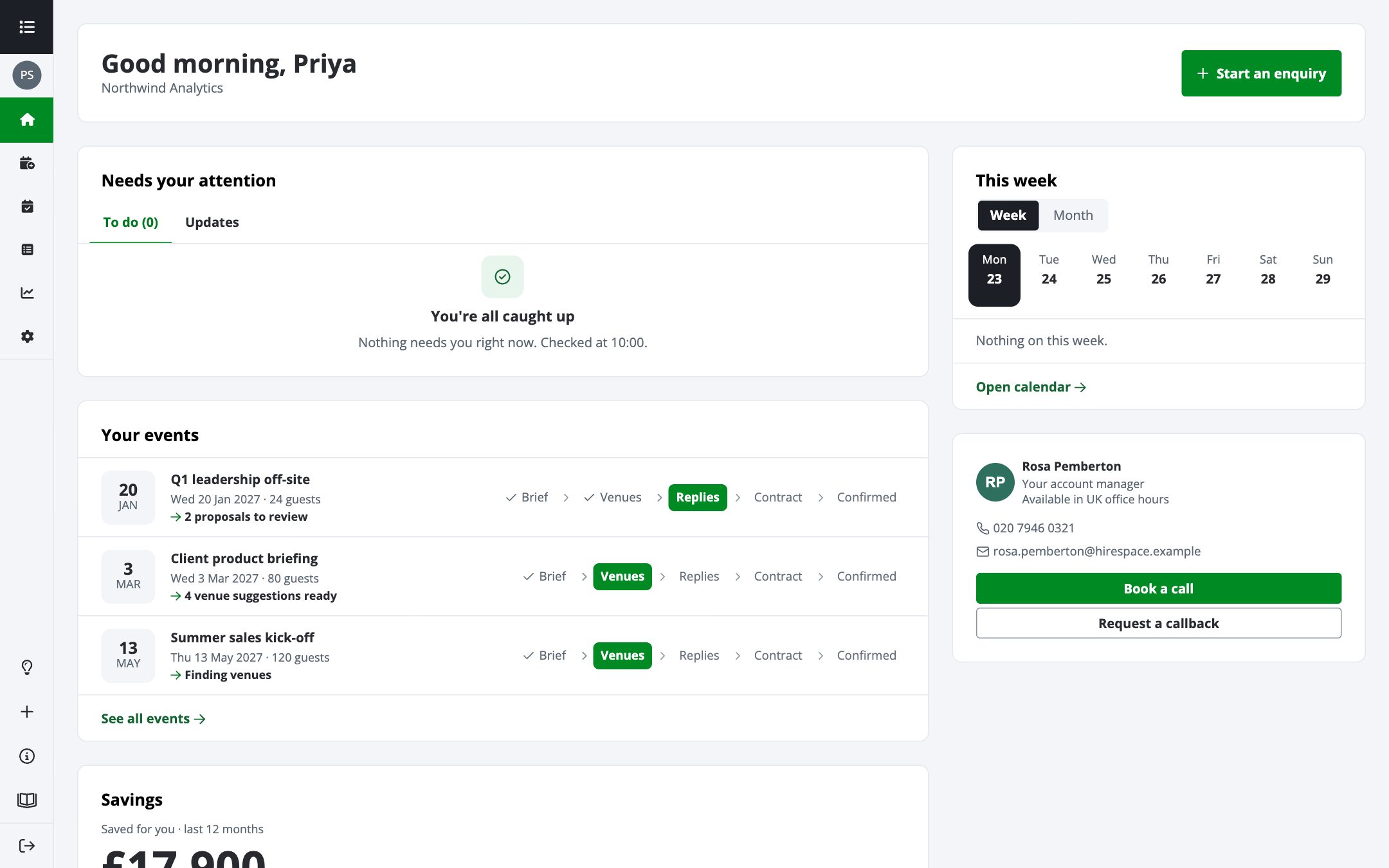
The Savings card on your Home page shows the same total for the last 12 months. See Your Home page.
What happens next
Share what you find: export an answer or your savings, or pin a report to your team’s Home so everyone sees it.
Good to know
- Ask, Overview and Savings only count the events your teams can see.
- A saved report keeps the question, not the figures, so it’s always up to date.
- Savings in other currencies are converted to pounds at today’s rate.
- Early on it’s normal for the Home card to say “No savings recorded in the last 12 months yet.”
- If you need a figure the reports don’t show, contact your account manager.
Troubleshooting
- Reports says Unlock Reports: you don’t have access to Overview yet, but Savings still works. Reports comes with your role: ask an admin at your company to check you have the User or Admin role. If you do and it’s still locked, contact your account manager.
- I can’t answer that yet: try one of the suggested questions, or ask in a simpler way. Questions Ask can’t answer are recorded so we can add them.
- No savings recorded in this period yet: savings show once events are booked with a saving recorded. Try a longer period.
- You have asked all the questions you can today: saved reports and exports still work. Try again tomorrow.
- The microphone doesn’t work: allow it for this site in your browser’s address bar or settings, or type your question instead.
Still need help?
Contact your account manager, or email our team.