Guided tour
Hire Space events and venue offers
Register for a Hire Space event, then pick dates a venue has offered to host you. Click the highlighted parts of the screen to move on, or use the arrow keys.
Earlier in this series: Your Home page
Hire Space runs events for Hire Space 360 and preferred clients, such as showcases, dinners and workshops, and venues offer dates to host them. Both show up on your Home page, so you can register or ask for a visit in a couple of clicks, without an email chain.
Who can use it
Hire Space 360 clients and preferred clients. Events and offers are open to your company, and anyone at it can register or pick dates. Registering or asking for a visit doesn’t affect your managed enquiries.
Why use Events for you
- See venues in person before you need them. Showcases, dinners and venue offers are a chance to visit venues, including new openings, before you have an event for them.
- No email chain. Register in a couple of clicks, add the event to your calendar and cancel your place yourself if plans change.
- Visits are arranged for you. For a venue offer, pick up to five dates and your account manager checks them with the venue in the order you chose, then confirms one with you.
Before you start
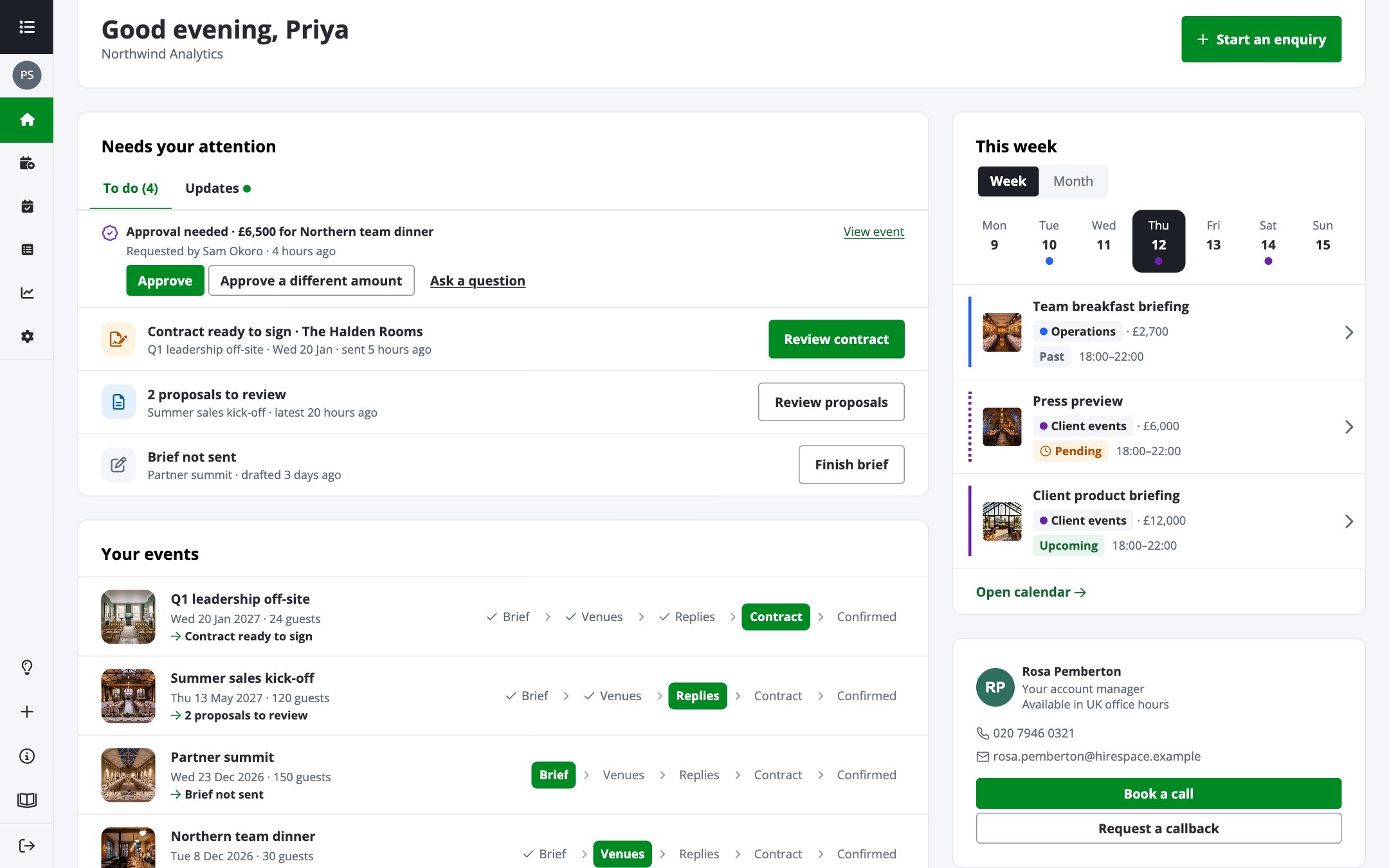
Sign in at home.hirespace.com and find Events for you on Home. If there’s nothing open to your company right now, it says so.
Events for you shows up to three cards: venue offers that need dates come first, then Hire Space events, soonest first. Each event card shows the title, the date and time, the venues and your status. When places are running low, an event card shows how many are left.
Register for a Hire Space event
- Select an event card to open the event page. It shows when and where guests meet, what happens and the venues taking part.
- Select Register.
- If the event has a few questions, answer each one (Step 1 of 2) and select Continue. Some questions let you choose more than one answer.
- Check you’re registering with your company’s account and select Confirm registration (Step 2 of 2).
- When it says You’re registered, select Add to calendar to save the event to your calendar, then Done.
We also email you a confirmation with a link back to the event page.
Cancel your place
Open the event page and select Cancel my place. You can do this until the event starts. If we cancel an event, everyone registered gets an email, with the reason when we have one.
Pick dates for a venue offer
A venue offer card says Offered by the venue and the months it runs. Your account manager arranges the visit with the venue.
- Select Pick dates on the card. The offer page shows what the venue offers, what’s included and how many guests it takes.
- Under Pick the dates that work, choose up to five dates. Dates marked Taken can’t be picked. Your account manager tries them in the order you pick them.
- Enter the number of guests, including you.
- Add a note for your account manager if you like.
- Select Send to and your account manager’s name.
Nothing is booked or held yet. Your account manager checks with the venue, confirms one date and emails you. Meanwhile the offer shows Requested, and you can select Change dates or Withdraw request.
What happens next
- An event: you’re on the list. The event page keeps the details, and the card on Home shows Registered.
- An offer: once your account manager confirms a date, the offer shows Arranged with the date. Select Add to calendar to save it. To change it, reply to your account manager’s email.
Good to know
- If a date you picked goes while you’re choosing, we leave it out and send the rest.
- If a colleague has already asked about the same offer, your dates aren’t sent and your account manager picks it up with them.
Troubleshooting
- This event is full: ask your account manager about the next one.
- Registration has closed: the page says “Registration for this event has closed.” The closing date has passed.
- Not this time: the page says “This event isn’t the right fit this time. Your account manager can tell you about others.” Your answers show it isn’t for you.
- I can’t see Events for you: it’s for Hire Space 360 and preferred clients. If your company is one and you still can’t see it, ask your account manager.
Still need help?
Contact your account manager, or email our team.