Guided tour
Manage admins and the emails they receive
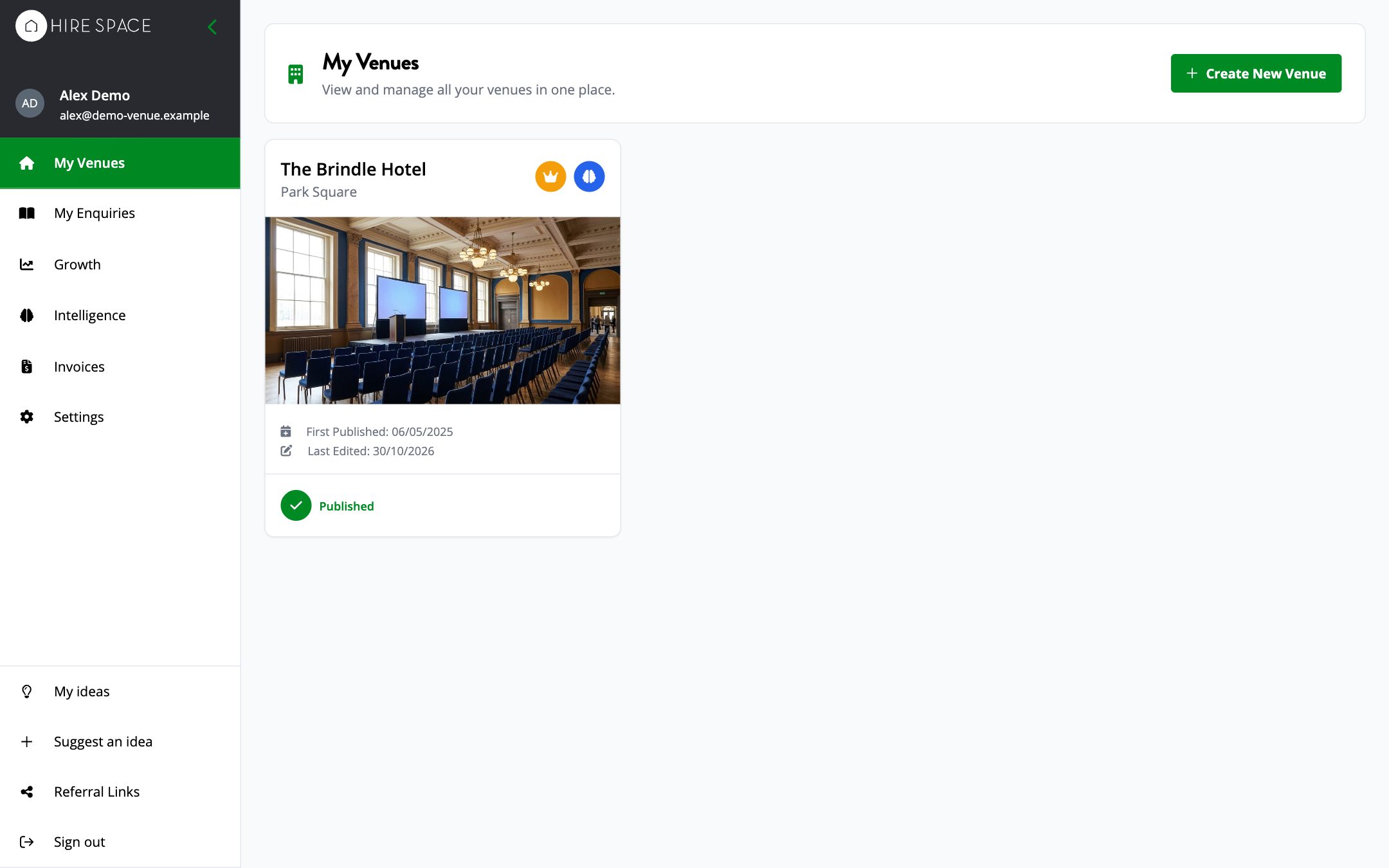
Add, change and remove the people who can manage your venue, and choose which emails each one receives. Any admin of a venue can do this. This short tour shows you around: click the highlighted parts of the screen to move on, or use the arrow keys.
Read the video transcript
Admins are the people who can log in and manage your venue. Each admin's roles decide which emails they get, so the right person sees every enquiry and invoice. Any admin of a venue can add, change and remove its admins. In the sidebar, click My Venues, then choose your venue. Next, open the Admins tab. To add a colleague, click Add venue access. Enter their first name, last name and email, and a venue or direct phone number. You can leave the mobile blank. Under Roles, tick the emails they should receive: Fast Track for direct enquiries, Concierge for Concierge enquiries and Invoices for invoices and payments. Tick Marketing for whoever looks after your marketing: it gives them our marketing tools, such as Growth, and news of marketing opportunities with Hire Space. Then click Add venue access. If your venue has linked accommodation, the Access column shows who can manage the venue, the accommodation or both. To give someone access to just your accommodation, click Add accommodation access and fill in the same details. To change someone's roles, click the menu on their row, then click Edit. Tick or untick their roles, then click Save Changes. To remove someone, open the same menu and click Remove venue access, or Remove accommodation access. Then click Remove to confirm. We email each new admin a link to set their password. The link expires after 7 days. If it runs out, email venues@hirespace.com and we'll send a new one. The full steps are in the help article.
Admins are the people who can log in and manage your venue. Each admin’s roles decide which emails they get, so the right person sees every enquiry and invoice.
Who can use it
Any admin of a venue can add, change and remove its admins. Accommodation access only appears if your venue has linked on-site accommodation, and only admins who have accommodation access themselves can add or remove it.
What does each role do?
| Role | Emails the admin receives |
|---|---|
| Fast Track | Direct enquiries from clients |
| Concierge | Concierge enquiries and quote requests from your Hire Space account manager |
| Marketing | For whoever looks after your venue’s marketing: access to our marketing tools, such as Growth, and news of marketing opportunities with Hire Space |
| Invoices | Invoices and payment emails |
An admin with no roles ticked can still log in and edit the venue, but gets none of these emails.
Before you start
- You need to be an admin of the venue yourself.
- Have each new admin’s name, email address and a phone number to hand.
Add someone as a venue admin
Add a colleague when they need to manage your venue or receive its enquiries or invoices, or look after its marketing with us.
- In the sidebar, click My Venues, then choose your venue.
- Open the Admins tab and click Add venue access.
- Enter their First Name, Last Name and Email.
- Enter a Venue or direct phone number. You can leave Mobile (optional) blank.
- Under Roles, tick the emails this admin should receive.
- Click Add venue access.
We email the new admin a link to set their password. The link expires after 7 days. If it runs out, email venues@hirespace.com and we’ll send a new one.
If the person already has a Hire Space login, we add the access to it and don’t send a welcome email. The name and phone numbers you enter replace the ones on their profile.
Give someone access to your accommodation
If your venue has linked on-site accommodation, the Admins tab also has an Add accommodation access button and an Access column showing whether each person can manage the Venue, the Accommodation or both. Use the Access filter to show one or the other.
Accommodation access lets someone manage the rooms and prices, facilities, photos and admins of your accommodation, without access to your event spaces.
For accommodation access, Fast Track and Concierge choose who gets your accommodation’s direct and Concierge enquiry emails, and Invoices makes someone a first contact for its commission invoices. Marketing doesn’t change anything for accommodation.
- On the Admins tab, click Add accommodation access.
- Enter their First Name, Last Name, Email and Phone, and tick any Roles they need.
- Click Add accommodation access.
Change an admin’s details or roles
Update an admin when their contact details change or when they should start or stop receiving certain emails.
- On the Admins tab, click the … menu on the admin’s row.
- Click Edit.
- Change their details or tick and untick Roles.
- Click Save Changes.
Remove an admin’s access
Remove someone when they leave or no longer need to manage your venue or accommodation. Removing someone’s venue access keeps any accommodation access they have, and the other way round.
- On the Admins tab, click the … menu on the admin’s row.
- Click Remove venue access (or Remove accommodation access), then click Remove to confirm.
Good to know
- Admins who only have accommodation access have no Edit option on the Admins tab.
- Roles are set per venue. If someone manages several venues, set their roles on each one.
- If your venue has only one admin, we recommend ticking all four roles so nothing is missed. It isn’t required.
- Keep phone numbers up to date. Availability calls go to admins with the Fast Track or Concierge role, to the Venue or direct phone number first. The mobile is only used if there is no usable venue number.
- To see every venue’s admins in one place, go to Settings in the sidebar, then Admins. Click Edit Admins to change a venue’s admins.
Troubleshooting
We’re getting chasers about enquiries we don’t recognise.
They were probably sent to an admin who has left or to an old address. Check the admins and their roles here, then search My Enquiries for the reference in the email subject. See Direct and Concierge enquiries.
An admin isn’t getting enquiry emails.
Check they have the Fast Track role for direct enquiries and Concierge for Concierge requests. If the roles are right, see Not receiving enquiry emails.
An admin can’t log in.
Ask them to reset their password using the email address on their admin profile. See Log in and reset your password.
Still need help?
Email the venue team and we will get back to you.