Guided tour
Refer the enquiries you can't take
Send clients you can't host to your own branded venue search, and earn a share of our commission when they book. Free for every Hire Space venue. This short tour shows you around: click the highlighted parts of the screen to move on, or use the arrow keys.
Read the video transcript
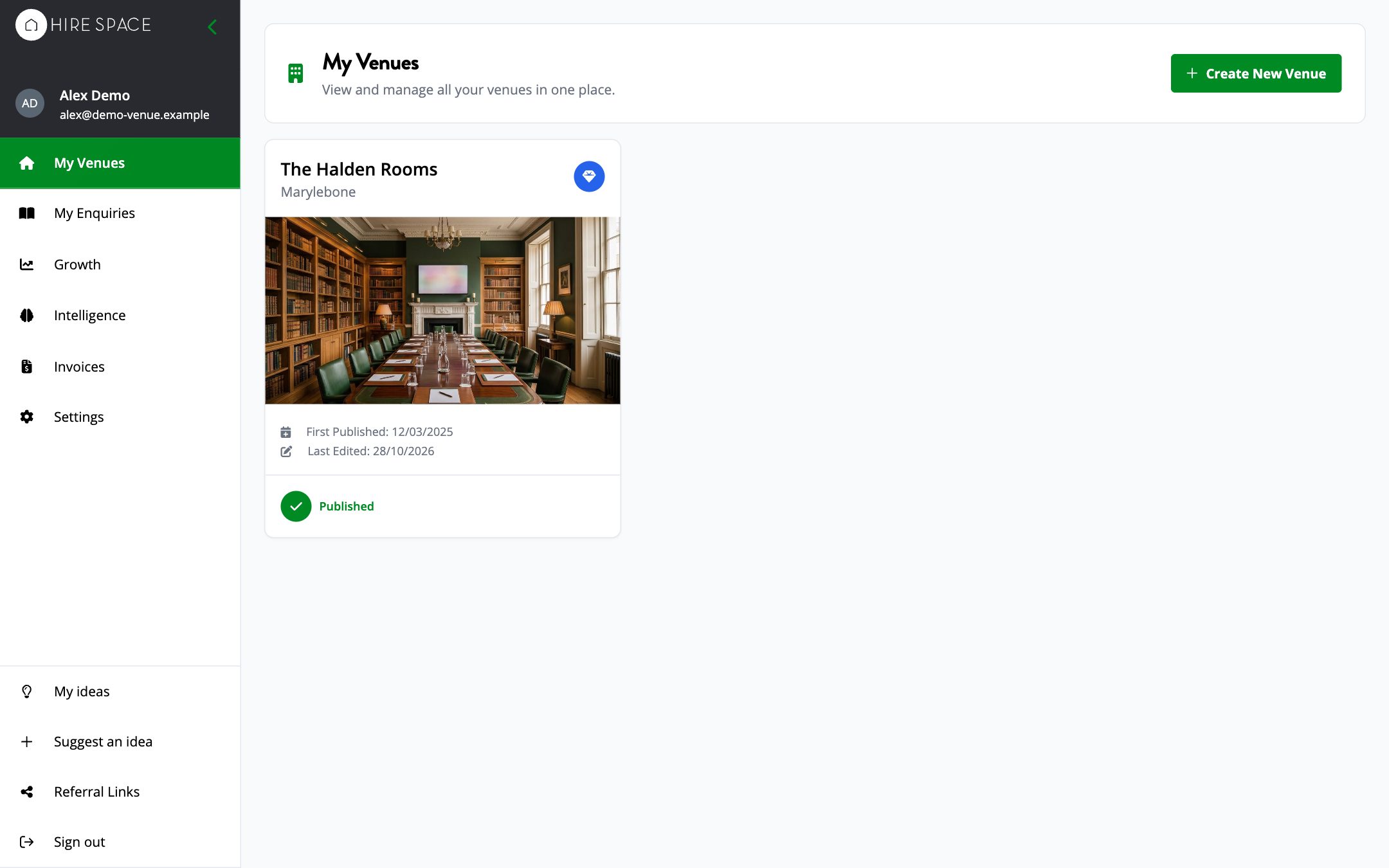
When you can't host an event, you can still help the client and earn from it. Your referral link opens a version of Hire Space's venue search with your logo and colours, so the client can find a venue that fits. If they book through it, you earn a share of the commission. It's free for every Hire Space venue, and any admin of the venue can use it. Your link lives in the sidebar. Click Referral Links. Find your venue and click Copy Link, or click Open to see the page your clients will see. Then paste the link into your reply to the client, for example when you decline an enquiry. Next, set up your branding and the venues you suggest. Close the window, and in the sidebar, click Settings, then Referrals. If you manage more than one venue, choose it first. Under AI Venue Guidance, describe the kind of venues that suit your clients, for example similar capacity, central London or in-house catering. Add any Preferred Venues you'd like suggested first, and any Venues to Exclude. Under Venue Branding, if you haven't set up branding yet, click Auto Generate, and we detect your logo, brand colours and preferred theme from your website. Once it's set up, check your logo, brand colours and preferred theme. If your website has changed, check your website domain and click Update from Website. Then click Save Settings. Your referral page now shows your branding and suggests venues that suit your clients. If Referral Links is missing from your sidebar, email venues@hirespace.com. The full steps are in the help article.
When you can’t host an event, you can still help the client and earn from it. Your referral link opens a version of Hire Space’s venue search with your logo and colours, so the client can find a venue that does fit. If they book through it, you earn 20% of the commission Hire Space earns on that booking, paid once the event has happened and we have been paid. It’s free for every Hire Space venue.
Share your referral link
Send the link whenever you turn a client away. The client sees venue search with your branding, and you earn your share if they book through it.
- In the sidebar, click Referral Links.
- Find your venue and click Copy Link, or click Open to see the page your clients will see.
- Paste the link into your reply to the client, for example when you decline an enquiry.
Set up your branding and the venues you suggest
Set this up so your referral page shows your branding and suggests venues that suit your clients.
- In the sidebar, click Settings, then Referrals.
- If you manage more than one venue, choose the venue at the top of the page.
- Under AI Venue Guidance, describe in Comparable venue brief the kind of venues that suit your clients, for example similar capacity, central London or in-house catering.
- Add any Preferred Venues you’d like suggested first, and any Venues to Exclude.
- Under Venue Branding, set up how your referral page looks:
- If you haven’t set up branding yet, click Auto Generate. We detect your logo, brand colours and preferred theme from your website.
- Once it’s set up, check your Logo, Brand Colours and Preferred Theme. If your website has changed, check your Website domain and click Update from Website.
- Click Save Settings.
Good to know
- The link is free to use, and you can share it as often as you like.
- You earn your share when a client you referred books through your link. We pay it once the event has happened and we have been paid. It comes from our commission, so the client pays nothing extra.
Troubleshooting
I can’t see Referral Links in the sidebar.
Make sure you’re signed in to venues.hirespace.com as an admin of the venue. If it’s still missing, email venues@hirespace.com.
The referral page doesn’t show my logo or colours.
Your logo and colours come from your website. Open Settings > Referrals and, under Venue Branding, click Auto Generate, or check your Website domain and click Update from Website. Then click Save Settings. If your logo still doesn’t show, email venues@hirespace.com.
Still need help?
Email the venue team and we will get back to you.