Guided tour
Real Time Intelligence
Get suggested changes to your live proposals and apply them in one click. Included in Intelligence Core and free to try on Growth Prime until 31 December 2026. This short tour shows you around: click the highlighted parts of the screen to move on, or use the arrow keys.
Read the video transcript
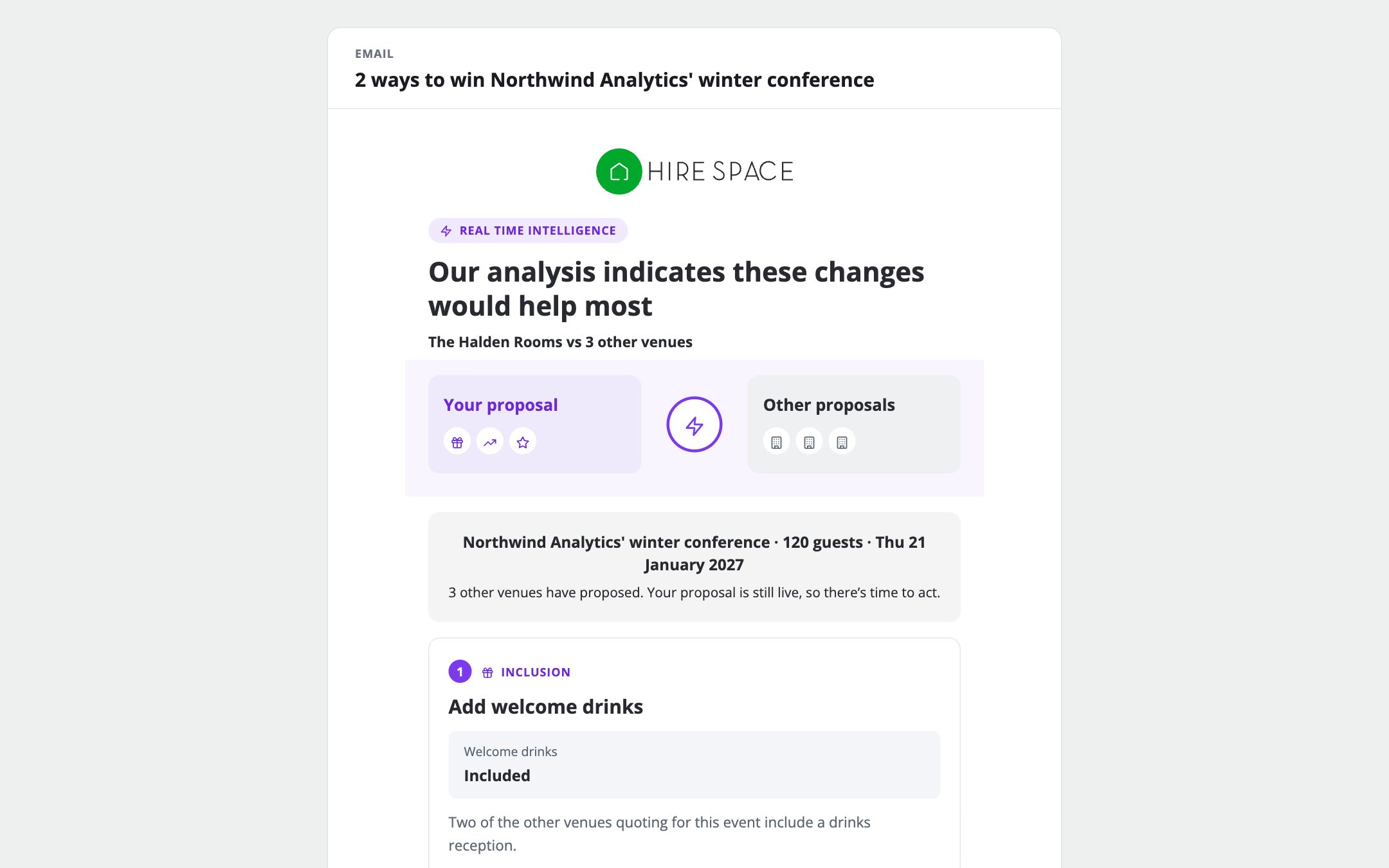
Real Time Intelligence suggests changes to a live proposal while the client is still deciding, based on the other proposals for the same event. It's included in Intelligence Core, and venues on Growth Prime can try it until the 31st of December. When we have suggestions, we email you. Each one shows the change and why we suggest it. To act on one, click Review and apply. This opens the suggestion in your browser. You're now on the suggestion page. Check the change and what your client will see, then click Apply to my proposal. Your proposal updates straight away. Every suggestion also appears in the venues app. Log in, and in the sidebar, click Intelligence. Then click Real Time Intelligence. Each row is one proposal we analysed. Click the arrow at the end of the row to show its suggestions. The welcome drinks from the email show as applied. To add another, click Apply. If you don't want one, click Dismiss instead. Changed your mind? On an applied suggestion, click Undo. Then click Undo change to confirm. Next, click Settings. Under Real Time Intelligence, turn the emails on or off for everyone at the venue. Then set Minimum competing proposals, and click Save Settings. Suggestions expire 31 days after we make them, so act on them soon. The full details are in the help article.
Real Time Intelligence suggests changes to a proposal while it is still live, so you can improve your offer before the client decides. Each suggestion is based on the other proposals for the same event, and you can apply it to your proposal in one click.
Who can use it
Real Time Intelligence is included in Intelligence Core, and included with Growth Prime until 31 December 2026.
If your venue is on another plan, the Real Time Intelligence page shows a preview and an Unlock Real Time Intelligence message. To upgrade, book a call with our team. See Free listing, Growth and Intelligence for what each plan includes.
Why it helps
- You can act while the client is still choosing. Most feedback arrives after a booking is lost. These suggestions arrive while your proposal can still win.
- They’re based on real competing proposals. We compare your proposal with the other venues’ proposals for the same event and with your own recent wins and losses, not with general market averages.
- Nothing changes without you. A suggestion only changes your proposal when you apply it, and you can undo it afterwards.
- You can see what worked. The Real Time Intelligence page shows your win rate on proposals where you applied a suggestion compared with those where you didn’t.
How it works
- You price a proposal for an enquiry.
- Once enough other venues have priced the same event (3 by default), we compare your proposal with theirs, about ten minutes after your last price change.
- You get up to 3 suggested changes by email.
- Every suggestion also appears in the sidebar under Intelligence > Real Time Intelligence.
We also make a suggestion when Hire Space has pitched your venue to the client: we send the one change our analysis indicates may win it, whatever your Minimum competing proposals setting.
Suggestions include an Inclusion, a Discount or a Highlight (a reason added to why we recommend your venue to the client). Each comes with a short reason and an approximate estimate of its impact.
Apply a suggestion from the email
Use this when a Real Time Intelligence email arrives. Each email lists up to three suggestions for one of your live proposals, and applying one updates that proposal. The subject says how many changes there are and names the event, for example “2 ways to win Northwind Analytics’ winter conference”.
- Open the email and click Review and apply under the suggestion you want. You don’t need to log in to see it.
- Read the change, Why we suggest it and what the client will see.
- Click Apply to my proposal. Your proposal updates straight away.
Opening the page doesn’t change anything. Your proposal only changes when you click Apply to my proposal.
Apply or dismiss a suggestion in the dashboard
Every suggestion also appears on the Real Time Intelligence page, so you can review them all in one place, including any you didn’t act on from an email. A suggestion only changes your proposal when you apply it.
- In the sidebar, click Intelligence, then Real Time Intelligence.
- Use the filters to narrow the list by Venue, Outcome, Trigger or Run date.
- Click the arrow at the end of a proposal’s row to show its suggestions.
- Click Apply to add a suggestion to your proposal, or Dismiss if you don’t want it. You can still click Apply anyway on a dismissed suggestion later.
The cards at the top show your Runs, Runs with an applied suggestion and Win rate: applied vs not.
Undo a suggestion you applied
If you change your mind after applying a suggestion, you can reverse it from the Real Time Intelligence page.
- In the sidebar, click Intelligence, then Real Time Intelligence.
- Click the arrow at the end of the proposal’s row to show its suggestions.
- On the applied suggestion, click Undo.
- Click Undo change to confirm, or Keep it to leave it as it is.
If you’ve edited a price since applying a suggestion, undo leaves your edit alone. Undo isn’t possible once the proposal is closed or in a contract you’ve sent.
Choose who gets emails and when suggestions start
Change these settings for each venue if you’d rather check the Real Time Intelligence page than get emails, or if you want suggestions to start with fewer or more competing proposals.
- In the sidebar, click Settings, then Intelligence.
- Choose the venue.
- Under Real Time Intelligence, turn Real Time Intelligence emails on or off. When it’s off, we still make suggestions and you’ll find them on the Real Time Intelligence page.
- Set Minimum competing proposals to any number from 1 to 10. Fewer means more suggestions, based on less data.
- Click Save Settings.
Emails go to everyone who receives your venue’s enquiries. To change who that is, see Manage admins.
To stop the emails just for yourself, click Unsubscribe at the bottom of any Real Time Intelligence email. Turning off Real Time Intelligence emails in Settings stops them for everyone at the venue.
Good to know
- We never name or identify the other venues. Suggestions refer to “other venues” or “other proposals” only.
- Suggestions only start once enough other venues have priced the same event. If you rarely see any, lower Minimum competing proposals.
- Suggestions expire 31 days after we make them.
- A suggestion can’t be applied once the proposal is won, lost or cancelled, or once it’s in a contract you’ve sent. Update the contract from the enquiry instead.
- If you’ve edited the same line since we made a suggestion, we leave your edit alone.
- Turning emails back on doesn’t resend earlier suggestions.
Troubleshooting
I’m not getting Real Time Intelligence emails.
Check that Real Time Intelligence emails is on in Settings > Intelligence, that you receive your venue’s enquiry emails and that you haven’t clicked Unsubscribe in an earlier one. If all three are right, email venues@hirespace.com.
A suggestion says it can’t be applied.
The proposal has closed, is in a sent contract, has changed since the suggestion was made or the suggestion has expired. Nothing in your proposal was changed.
Still need help?
Email the venue team and we will get back to you.