Guided tour
Set up Intelligence for your venue
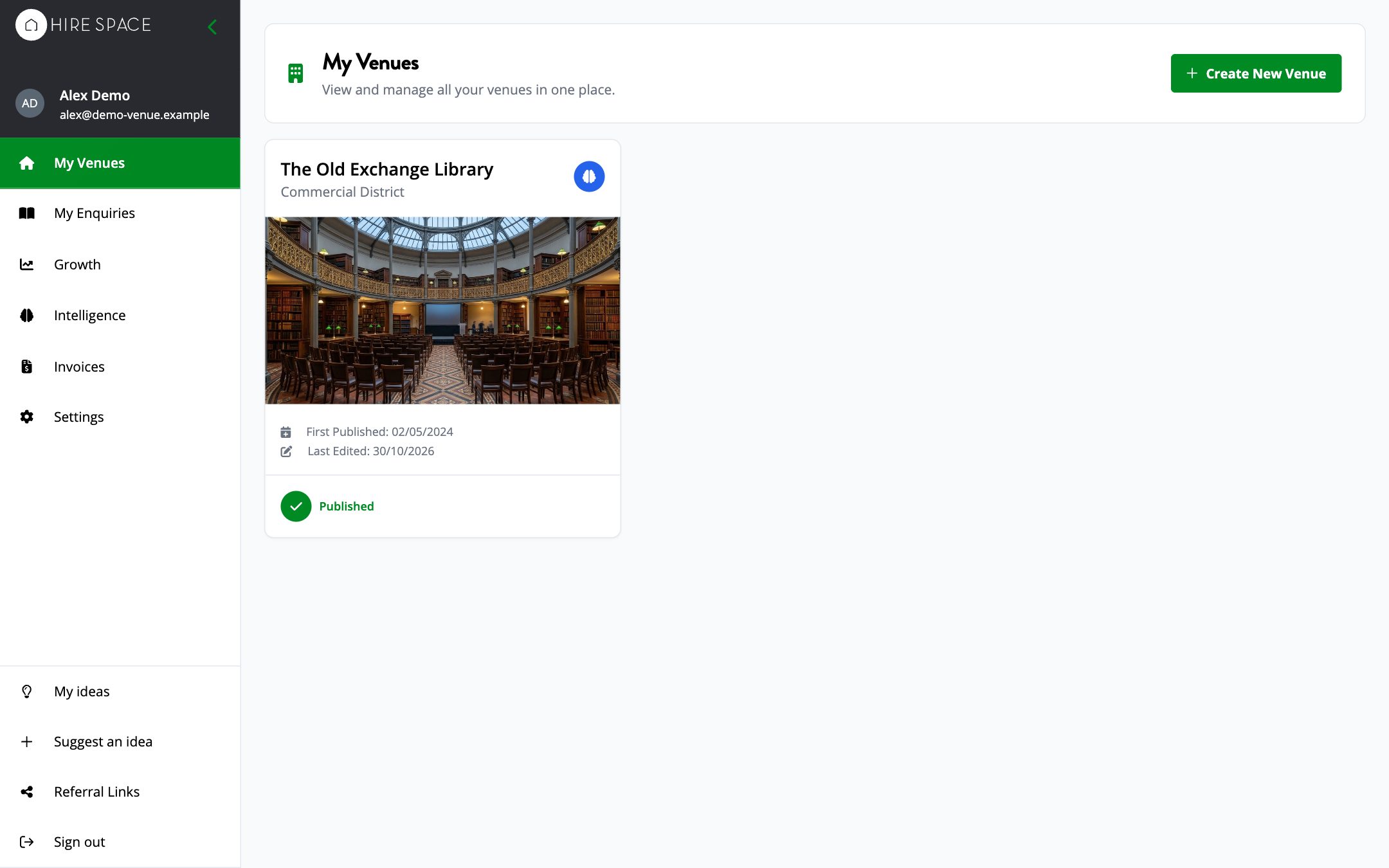
Give Intelligence the context it needs about your venue. Included in Intelligence Core. This short tour shows you around: click the highlighted parts of the screen to move on, or use the arrow keys.
Read the video transcript
If your venue is on Intelligence Core, your Intelligence settings give reports the context they need, so recommendations fit your business. In the sidebar, click Settings, then Intelligence. The settings are for the venue named at the top. Turn on Auto-generate Reports to have Proposal Reports made automatically, and Auto-notify on Report Generation to get an email when one is ready. In the first box, describe the main problem you want reports to address. Under Context Information, add anything that limits what you can offer, then your margins, which are never shared. Click Save Settings. The full details are in the help article.
Tell Intelligence about your venue so its reports fit your business: what you want to improve, what you can’t offer and where your margins sit. You can also choose whether Proposal Reports are made and emailed to you automatically.
Who can use it
- These settings come with Intelligence Core. See Free listing, Growth and Intelligence for what each tier includes.
- Venues on Growth Prime without Intelligence see only the Real Time Intelligence part of this page during the trial, which runs until 31 December 2026.
- To upgrade, book a call with our team, or email venues@hirespace.com with any questions about your plan.
Why it helps
- Recommendations that you can act on. Reports that know your restrictions don’t suggest things you can’t do, such as weekend events if you close at weekends.
- Advice that protects your margins. Adding your margins and commercial context helps recommendations take them into account.
- Reports that answer your question. A standing focus, such as winning more winter dinners, gives every report the same goal.
- Less to remember. Turn on automatic reports and emails, and new Proposal Reports come to you.
Set up reports for a venue
Do this once for each venue, and again whenever your focus, restrictions or margins change.
- In the sidebar, click Settings, then Intelligence.
- If you have more than one venue, choose the venue under Venue. The page shows “Settings for” and the venue’s name.
- Turn on Auto-generate Reports to have Proposal Reports made automatically for eligible proposals.
- Turn on Auto-notify on Report Generation to get an email when a new Proposal Report is ready.
- In the first box, describe the main problem you want reports to address, for example “We keep losing Christmas parties to hotels”. It is used as context in both Proposal Reports and Strategic Reports.
- Under Context Information, in the next box, add anything that limits what you can offer, for example “No events on weekends”.
- In the last box, add your margins and commercial context, for example “Room hire is about 70% margin”. This is never shared.
- Click Save Settings.
Good to know
- Both switches are off until you turn them on.
- Everything on this page is set per venue, so each venue in a group has its own settings.
- The same page has a Real Time Intelligence section for suggestions on live proposals. See Real Time Intelligence.
Troubleshooting
I only see the Real Time Intelligence section.
Your venue is on the Growth Prime trial without Intelligence. The page shows “Unlock the rest of Intelligence”. To get Proposal Reports and these settings, book a call with our team.
I can’t find the venue I want to set up.
The Venue chooser only appears when you manage more than one venue. If your venue is missing, email venues@hirespace.com.
Still need help?
Email the venue team and we will get back to you.