Guided tour
Your Quarterly Performance Review
See how to open your Quarterly Performance Review and what each tab shows. Click the highlighted parts of the screen to move on, or use the arrow keys.
Read the video transcript
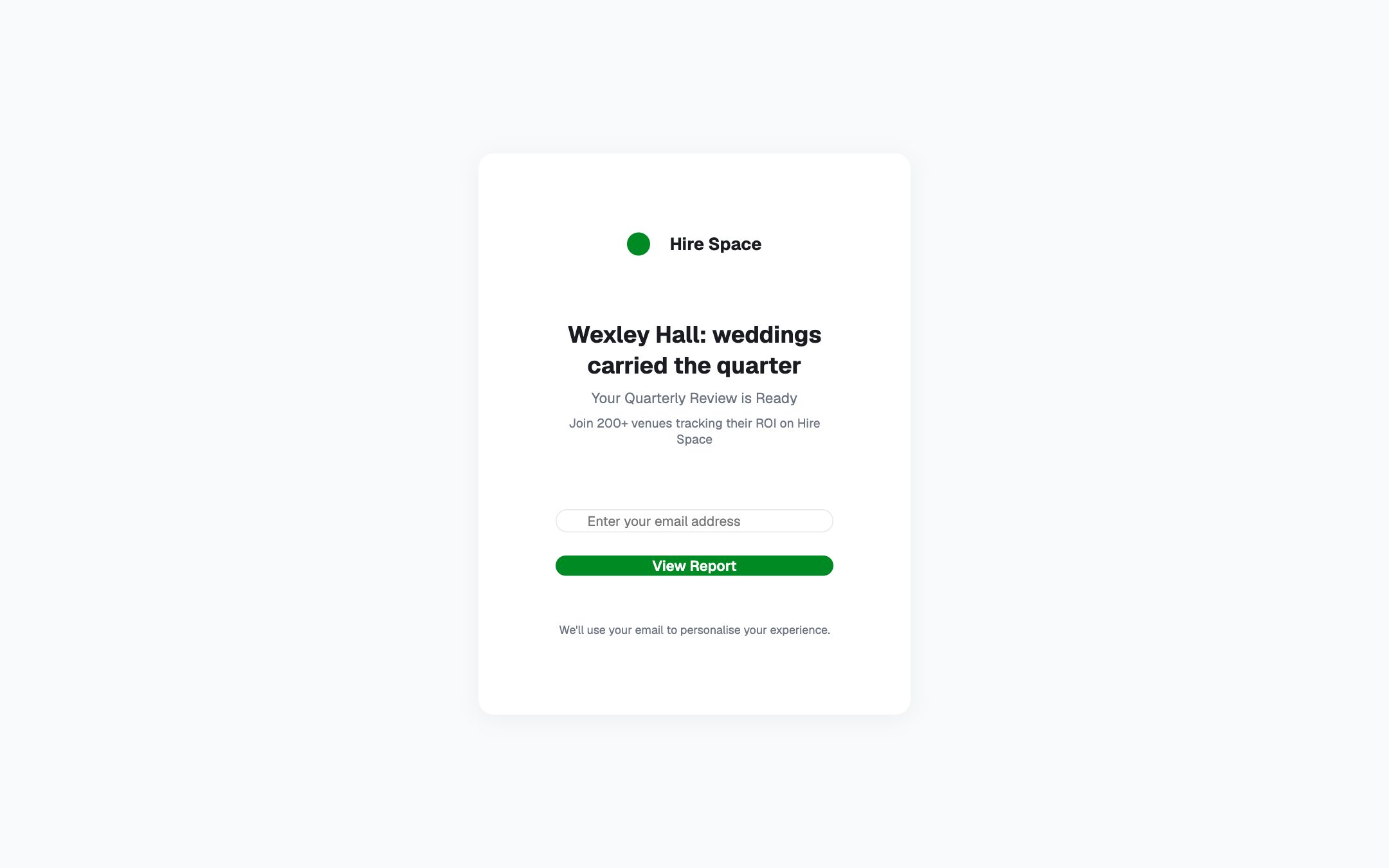
If your venue is on Growth Prime, your account manager sends you a Quarterly Performance Review each quarter of your contract. It shows how your venues performed, what your marketing with us achieved and what we recommend next. Open the link to your report and enter your email address. Then click View Report. Use the tabs along the top to move through the report. Results shows your headline performance for the period, then each venue's enquiries, bookings, average booking value and how often clients saw and clicked on your profile. Each venue has a small label for the period its figures cover. Q3 means that quarter of your contract, and date closed counts bookings by the date they were confirmed. Next, click Marketing. It shows the marketing we ran for you, such as social media features, and the enquiries it generated. Now click Observations, for the patterns our team has noticed in your enquiries and bookings. Then click Recommendations, for quick wins and the changes we suggest you make next. Next, click Next steps. Here's a short action plan with who does what. To talk it through, use the calendar button next to your account manager's name to book a meeting. Finally, click Reference for the source data behind the figures. The report is confidential, so keep the link within your team. The full details are in the help article.
Your Quarterly Performance Review is a report your Hire Space account manager sends you, usually once a quarter of your contract. It shows how your venues performed, what your marketing with us achieved and what we recommend doing next, so you can see the return on your plan and agree the next steps together.
Who can use it
- Venues on a Growth Prime contract. If you’re not sure whether you get a report, ask your account manager or email venues@hirespace.com.
What’s in each tab
- Results: your headline performance for the period, then each venue’s enquiries, bookings, average booking value and how often clients saw and clicked on your profile.
- Marketing: the marketing we ran for you, such as social media and email features, and the enquiries it generated.
- Observations: the patterns our team has noticed in your enquiries and bookings.
- Recommendations: quick wins and the changes we suggest you make next.
- Next steps: a short action plan with who does what, and a calendar button to book a meeting with your account manager.
- Reference: the source data behind the figures.
How to read the period on each venue
Each venue on Results has a small label showing the period its figures cover, for example “Q4 · date closed” or “Year to date · event date”.
- Q4 (or another quarter) means the figures cover that quarter of your contract. Year to date means they cover the year so far.
- date closed counts bookings by the date they were confirmed. event date counts them by the date the event takes place.
The label matters when you compare venues. Two venues in the same report can use different periods, and each venue’s row adds up to its own totals.
Before you start
- Have the link to your report to hand. We send it to you; it isn’t in the dashboard sidebar.
Open your report
- Open the link to your report.
- Enter your email address and click View Report.
- Use the tabs along the top to move through the report.
Good to know
- The report is marked confidential and written for your account, so keep the link within your team.
- To talk the report through, use the calendar button on Next steps to book a meeting with your account manager.
Troubleshooting
The report won’t open.
The report may have been withdrawn or replaced with a newer version. Ask your account manager for the latest link, or email venues@hirespace.com.
A venue’s figures don’t match what I expected.
Check the period label on that venue’s row. A venue counted by event date can show different figures from one counted by date closed.
Still need help?
Email the venue team and we will get back to you.