Guided tour
Ad Campaigns
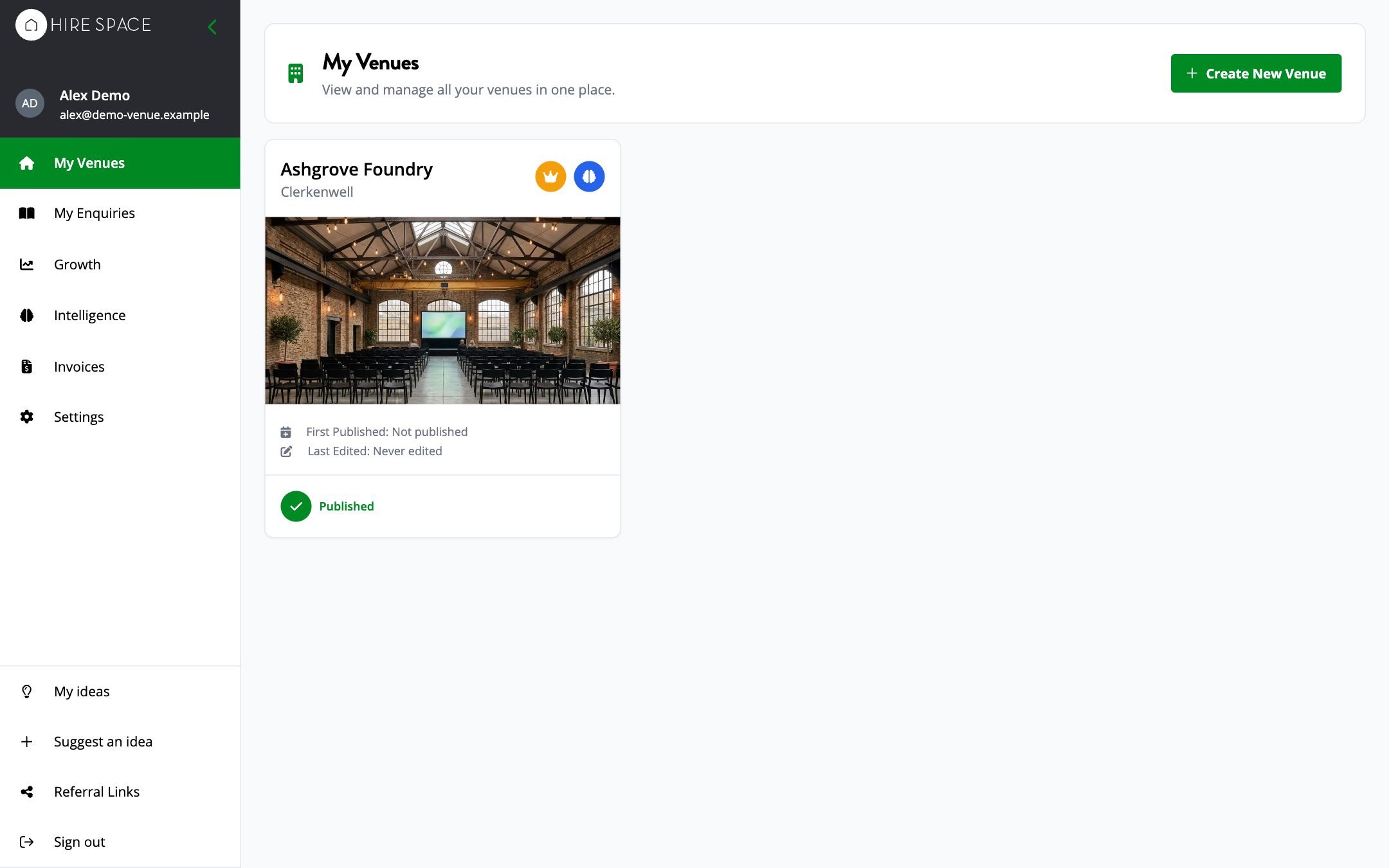
Schedule a week-long ad campaign that sends event planners to your Hire Space listing, and see its results. This short tour shows you where to find Ad Campaigns, how to create a campaign and where its results appear: click the highlighted parts of the screen to move on, or use the arrow keys.
Read the video transcript
If your venue is on Growth Prime, Ad Campaigns puts it in front of corporate event bookers who have already been searching for venues on Hire Space, and sends them to your listing. Here's how to schedule a campaign and see its results. In the sidebar, click Growth. Then click Ad Campaigns. Click New Campaign. Next, choose the venue. The form shows how many campaigns it has left this year. Each venue can run 2 a year, and 1 a month. Under Event type, choose the event you want to target, for example Conference. Under Start date, pick the Monday of the week you want. Campaigns run Monday to Friday. Then click Create Campaign. Your campaign is now a draft. You can edit or delete it until the Saturday before its start week. Click Got it. On that Saturday, it's sent to Google Ads and locked. To find a campaign, use the filters above the calendar. Click Completed. Next, click Campaigns, then click the campaign. Completed campaigns show clicks and impressions within 48 hours of the end. Where available, click Ad previews to see the ads, made from your profile photos and written for your event type. Put each campaign on a different peak period for your venue. The full details are in the help article.
Ad Campaigns lets each Growth Prime venue run week-long ad campaigns that put your venue in front of corporate event bookers who have already been searching for venues on Hire Space. The ads follow them across websites and apps and send them to your Hire Space listing. You choose the week and the type of event, and the results appear in your dashboard within 48 hours of the campaign ending.
Who can use it
- Growth Prime venues. Each venue has its own tier, so in a group only the venues on Growth Prime can run campaigns. See Free listing, Growth and Intelligence.
- To upgrade, book a call with our team. In your dashboard you can also click Upgrade Now on the Ad Campaigns page, then Book a Meeting.
Why it helps
- You reach people who are already planning an event. The ads go to corporate event bookers who have been looking for a venue on Hire Space, not to a general audience.
- You can push the business you want. Your sales team can pick the week and the event type, for example Christmas parties in September, to fill a gap in the diary.
- There is nothing to design. The ads are made from your profile photos and written for the event type you choose, and they link to your Hire Space page.
- You can see what it delivered. Impressions and clicks for each campaign appear in your dashboard, so your marketing team can judge which weeks and event types to repeat.
When to run a campaign
Planners start looking weeks or months before their event, so run your campaign while they are planning:
- Christmas parties: September or October. By November most planners have booked.
- Summer parties: March or April, when outdoor venue searches peak.
- Conferences and away days: booked all year, with a rise from January to March as companies plan their calendars.
- Awards ceremonies: 6 to 8 weeks before awards season peaks in your sector.
With 2 campaigns a year, put each one on a different peak period for your venue. Choose tags in Keyword Boost that match the same event type that week.
What happens after you create a campaign
- Draft: you can edit or delete the campaign until the Saturday before its start week.
- Scheduled: on that Saturday it is sent to Google Ads and locked. From then on it can’t be changed or cancelled.
- Active: it runs Monday to Friday, with ads written for your chosen event type.
- Results: impressions and clicks appear within 48 hours of the end. Use the Completed filter to find these campaigns.
Before you start
- Each venue can run up to 2 campaigns per calendar year, and only 1 per month.
Schedule a campaign
Create a campaign for the week and event type you want to push. It stays a draft you can edit or delete until the Saturday before its start week.
- In the sidebar, click Growth, then Ad Campaigns.
- Click New Campaign, or click a week on the calendar.
- Under Venue, choose the venue.
- Under Event type, choose the event you want to target, for example Conference, Christmas Party or Away Day.
- Under Start date, pick the Monday of the week you want. Campaigns run Monday to Friday.
- Click Create Campaign.
The form shows how many campaigns the venue has left this year. If you have reached a limit, it tells you why and Create Campaign stays greyed out.
Find a campaign and see its results
Open a campaign to check its details, or its results once it has finished. Clicks and impressions appear within 48 hours of the end.
- Above the calendar, use the Active, Scheduled, Draft and Completed filters to find the campaign.
- Click the campaign to open its details. Completed campaigns show Clicks and Impressions.
- Where available, click Ad previews to see the ads.
Good to know
- Your ads are image ads shown on websites and apps, not results in Google search. They use photos from your profile, are written for your chosen event type and link to your Hire Space page.
- Ads are shown to Hire Space’s audience of corporate event bookers: people who have visited Hire Space while looking for a venue.
- Don’t run campaigns for more than one of your venues in the same week. They would be shown to the same bookers and compete with each other.
- A draft you delete, or a campaign that fails, does not use one of your slots, so you can reschedule it.
- Hire Space runs a limited number of campaigns each week across all venues. Weeks marked Week full have no slots left for anyone. This is not a limit on your venues.
- To change a campaign, edit or delete it while it is still a draft. Once it is scheduled it runs as planned.
- If a campaign gets no impressions or clicks at all, we run a replacement the following week. It does not use one of your slots.
Troubleshooting
Create Campaign is greyed out.
The venue has used both campaigns this year or already has a campaign that month. The week may also be full. Read the message in the form and pick another month or week.
My finished campaign isn’t in the list.
The list hides finished campaigns at first. Click the Completed filter above the calendar to show them.
A campaign I created has disappeared.
It may have failed to reach Google Ads. Email venues@hirespace.com and we will sort it out. A failed campaign does not use one of your slots.
Still need help?
Email the venue team and we will get back to you.